SendGrid MCP Server
MCP server for SendGrid's v3 API: email marketing, transactional mail, templates, and analytics.
SendGrid MCP Server

A Model Context Protocol (MCP) server that provides comprehensive access to SendGrid's API v3 for email marketing, transactional email operations, dynamic template management, and detailed analytics. Features 154 tools covering all aspects of email management and performance analysis.
Built and maintained by a SendGrid engineer, as an independent project — not an official SendGrid product.
See RELEASES.md for what's changed in the latest release.
Features
- Marketing Automations: Create and manage email automation workflows
- Single Send Campaigns: Manage one-time email campaigns with detailed performance tracking
- Contact Management: Complete CRUD operations for contacts with advanced search and bulk operations
- Email Statistics & Analytics: Multi-dimensional performance analysis across browsers, devices, geography, and email providers with 13-month historical data
- Dynamic Segment Management: Create, update, and delete contact segments with complex filtering criteria that automatically refresh
- Dynamic Template Management: Create, manage, and version HTML email templates with Handlebars support for personalization
- Custom Fields Management: Define and manage additional contact data fields for enhanced targeting
- Mail Sending: Send transactional emails via SendGrid with full personalization support
- Sender Identity Management: Manage verified sender identities with authentication tracking
- Suppression Lists: Manage bounces, spam reports, and unsubscribes for deliverability optimization
- Account Settings: Access account details and configuration management
- Browser Integration: Quick links to SendGrid web interface for visual operations
- Read-Only Safety Mode: Secure operation mode prevents accidental data modification while maintaining full analytics access
Supported MCP Clients
✅ Claude Desktop - Official desktop app ✅ Claude Code - Official CLI tool ✅ Claude custom connectors - via Streamable HTTP (see Install the server) ✅ OpenAI Responses API / Apps SDK - via Streamable HTTP ✅ MCP Market - Hosted, one-click deploy, no install required (see Install the server) ✅ Cline - VS Code extension ✅ Zed Editor - Modern code editor ✅ Continue - VS Code autopilot ✅ Codex CLI - via Streamable HTTP ✅ Any MCP-compatible client
Getting Started
Follow these steps in order — by the end you'll have the server installed (or deployed), your SendGrid API key set, and your MCP client connected.
This is the actual request path, whichever client you end up using — some launch the server locally over stdio, others reach it over the network via Streamable HTTP (MCP Market, self-hosted), which adds a choice of client auth on top:
                                ┌──────────┐
                                │  Client  │
                                └────┬─────┘
              ┌──────────────────────┴───────────────────┐
              │                                          │
           stdio (local subprocess)        HTTP (network)
              │               auth: none | token | oauth │
              │                                          │
              └──────────────────────┬───────────────────┘
                                     ▼
                           ┌────────────────────┐
                           │     MCP Server     │
                           │    (this repo)     │
                           └─────────┬──────────┘
                                     │  SENDGRID_API_KEY
                                     │  (always required, any transport)
                                     ▼
                           ┌────────────────────┐
                           │    SendGrid API    │
                           └────────────────────┘
SENDGRID_API_KEY is required no matter which path you take. READ_ONLY=true
(the default) is a further gate inside the MCP Server box — it blocks
create/update/delete/send tools once a request is already in, regardless of
which branch it arrived on. See Environment Variables
for the full list of what you can configure.
1. Install the server
Install it locally if your client launches it itself, or go remote if it connects over the network instead.
Local (stdio) — for Claude Desktop, Claude Code, Cline, Zed, Continue, or any client that runs the server as a subprocess:
npm install -g sendgrid-mcp
This installs the sendgrid-mcp command globally, which your MCP client will launch as a subprocess. Requires Node.js 20+.
Remote (HTTP) — nothing to install locally; pick one:
MCP Market (hosted, no install required)
MCP Market deploys and hosts this server for you — nothing to install locally and no environment variables to manage on your machine. You still need a SendGrid API key; you'll enter it into MCP Market instead of your own shell/config.
From MCP Market's MCP Servers page, deploy a custom MCP from either source:
- GitHub — select the GitHub source, choose Public or Private repo, paste
the repo URL (
https://github.com/deyikong/sendgrid-mcp), and pick a server name. - npm — select the npm source, enter the package name (
sendgrid-mcp), and pick a server name.
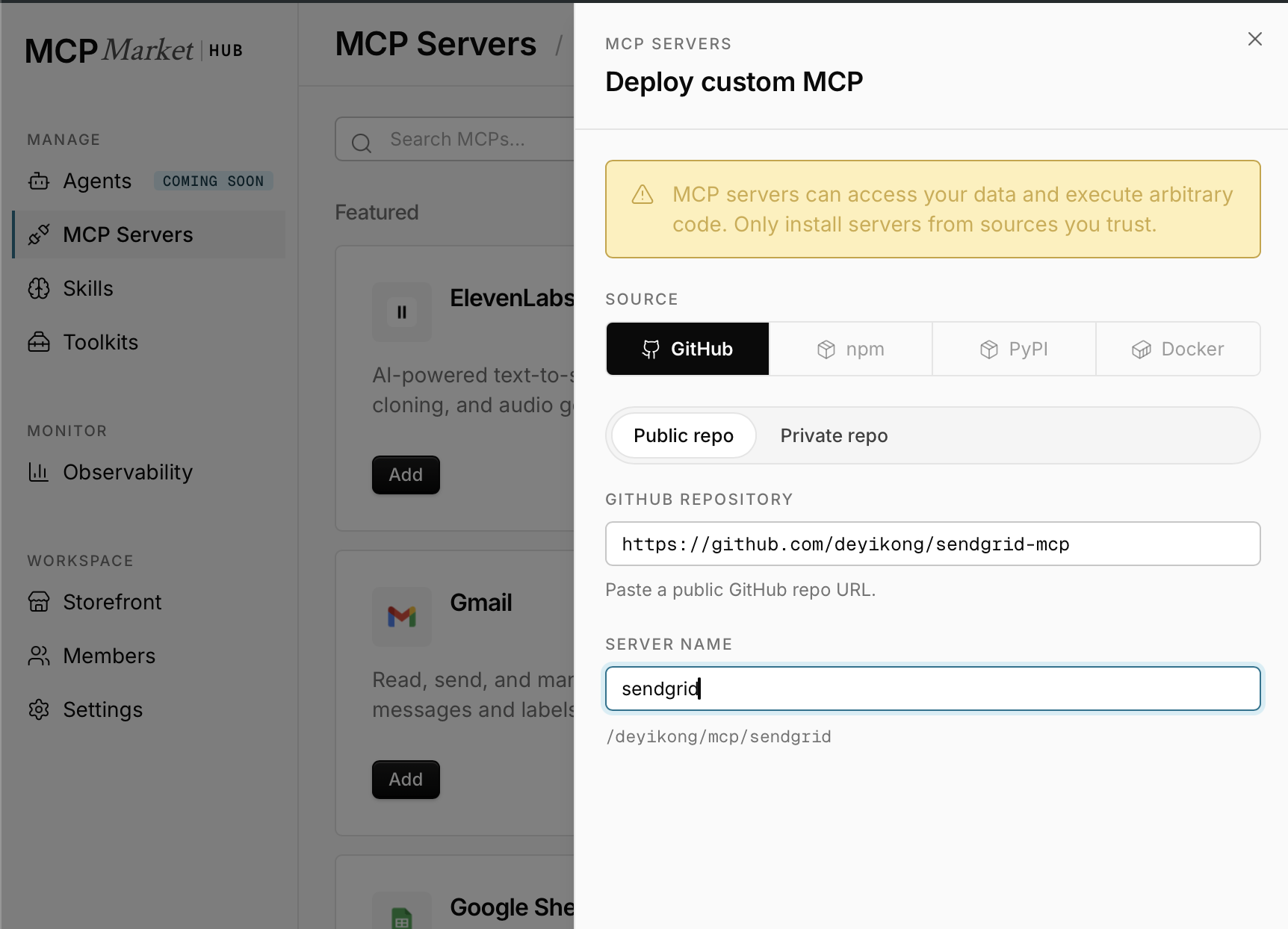
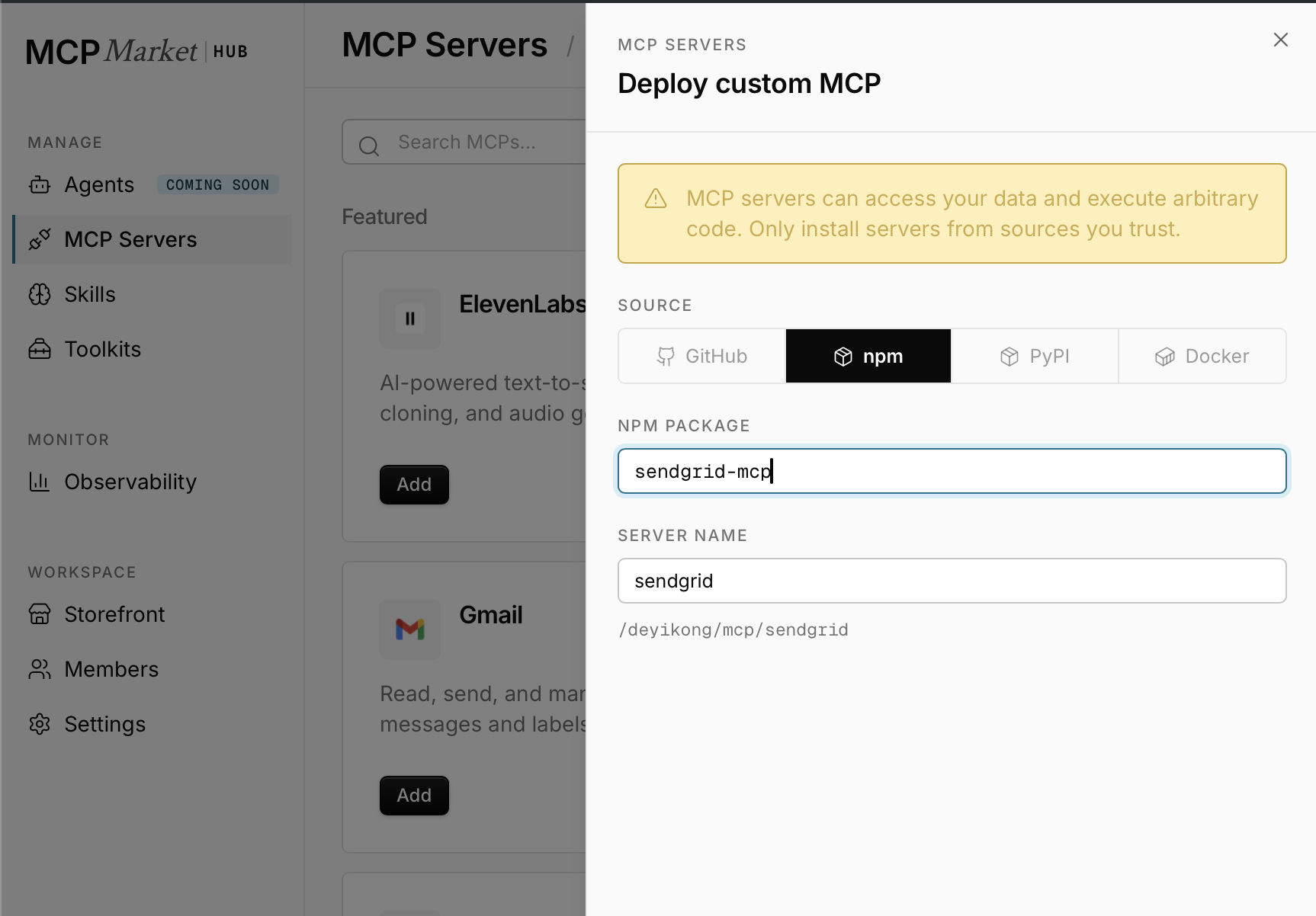
Either way, MCP Market builds and runs it for you; it shows up under
MCP Servers with a Running status once ready. Continue to
Configure your MCP client to set your
credentials and connect.
Self-hosted (Streamable HTTP)
Run the server yourself and expose it over Streamable HTTP instead of letting
a client launch it locally — for Claude custom connectors, OpenAI's Responses
API mcp tool / Apps SDK, or any other remote client.
The MCP endpoint is POST /mcp; GET /health returns a status document for
load balancers. Requests are handled statelessly (no session id required),
which is what hosted clients expect.
none/token/oauth below are not alternate ways to connect — they're
three different locks on the one new door (HTTP), as shown in the
request-flow diagram above.
Quick start (local development)
export SENDGRID_API_KEY="SG.your_api_key_here"
export MCP_TRANSPORT=http
export MCP_AUTH_MODE=token
export MCP_AUTH_TOKEN="$(openssl rand -hex 32)"

sendgrid-mcp
Authentication
Set MCP_AUTH_MODE to one of:
| Mode | Use for | Requires |
|---|---|---|
oauth | Production / remote clients | MCP_OAUTH_ISSUER, MCP_OAUTH_AUDIENCE |
token | Local dev, simple self-hosting | MCP_AUTH_TOKEN (16+ chars) |
none | Loopback development only | — refuses to start on a public bind |
OAuth mode makes this server an OAuth 2.1 resource server. It does not issue or store credentials — it verifies access tokens minted by your existing identity provider (Auth0, Okta, Entra ID, Google, Stytch, …) against that provider's published JWKS.
export MCP_AUTH_MODE=oauth
export MCP_OAUTH_ISSUER="https://your-tenant.auth0.com"
export MCP_OAUTH_AUDIENCE="https://mcp.example.com"
export MCP_OAUTH_REQUIRED_SCOPES="sendgrid:read"
export MCP_PUBLIC_URL="https://mcp.example.com"
SENDGRID_API_KEY (see the diagram in Getting Started)
is still required alongside these — OAuth only controls who can reach the server, not what the server
uses to talk to SendGrid.
The server publishes RFC 9728
Protected Resource Metadata at /.well-known/oauth-protected-resource, so
clients discover your authorization server automatically: an unauthenticated
request gets a 401 whose WWW-Authenticate header points at that document,
the client reads it, sends the user to your IdP to log in, and retries with the
resulting token.
Tokens are rejected (401) if expired, wrongly signed, or issued for a
different issuer or audience; a valid token missing a required scope gets 403.
Setting up your identity provider
Whichever provider you use, you're configuring the same three things: an issuer URL, an audience (a stable identifier for this API resource), and a scope clients will request. A few concrete walkthroughs:
Auth0
- Sign in to your Auth0 Dashboard and go to Applications → APIs → Create API.
- Set an Identifier — this is your audience, e.g.
https://mcp.example.com. It doesn't need to resolve to anything; it just needs to be unique. - Under the API's Permissions tab, add the scopes your server should
require, e.g.
sendgrid:read,sendgrid:write. - Your Issuer URL is your tenant domain, shown on the API's Settings
tab:
https://YOUR_TENANT.auth0.com/.
export MCP_OAUTH_ISSUER="https://YOUR_TENANT.auth0.com/"
export MCP_OAUTH_AUDIENCE="https://mcp.example.com"
export MCP_OAUTH_REQUIRED_SCOPES="sendgrid:read"
Okta
- Sign in to the Okta Admin Console and go to Security → API → Authorization Servers.
- Use the
defaultauthorization server, or create a new one. Its Issuer URI, shown at the top of the server's settings page, looks likehttps://{yourOktaDomain}/oauth2/{authServerId}. - On the same page, the Audience field (default
api://default) is what you'll use for the audience — set it to something specific to this server, e.g.api://sendgrid-mcp. - Open the Scopes tab and add a scope, e.g.
sendgrid:read.
export MCP_OAUTH_ISSUER="https://YOUR_OKTA_DOMAIN/oauth2/YOUR_AUTH_SERVER_ID"
export MCP_OAUTH_AUDIENCE="api://sendgrid-mcp"
export MCP_OAUTH_REQUIRED_SCOPES="sendgrid:read"
Microsoft Entra ID (Azure AD)
- In the Azure Portal, go to Microsoft Entra ID → App registrations → New registration to represent this MCP server as a resource.
- Open the new app's Expose an API page and set the
Application ID URI — this becomes your audience, e.g.
api://<client-id>. - On the same page, click Add a scope to define one, e.g.
sendgrid.read. - Your Issuer URL is
https://login.microsoftonline.com/{tenant-id}/v2.0, where{tenant-id}is the directory (tenant) ID from the app's Overview page.
export MCP_OAUTH_ISSUER="https://login.microsoftonline.com/YOUR_TENANT_ID/v2.0"
export MCP_OAUTH_AUDIENCE="api://YOUR_CLIENT_ID"
export MCP_OAUTH_REQUIRED_SCOPES="sendgrid.read"
Other providers (Google Identity Platform, Stytch, …) follow the same shape:
find the OpenID Connect issuer (usually published at
<issuer>/.well-known/openid-configuration), define an audience/resource
identifier for this server, and create a scope for it.
Whichever provider you use, also set MCP_PUBLIC_URL to the
externally-reachable URL of your server (e.g. https://mcp.example.com) —
clients use it during OAuth discovery.
TLS
Either terminate TLS in-process:
export TLS_KEY_FILE=/etc/ssl/private/mcp.key
export TLS_CERT_FILE=/etc/ssl/certs/mcp.crt
export TLS_CA_FILE=/etc/ssl/certs/chain.pem   # optional intermediates
…or terminate it at a proxy and tell the server to trust the forwarded headers:
export TRUST_PROXY=true
export MCP_PUBLIC_URL="https://mcp.example.com"
TRUST_PROXY is off by default because X-Forwarded-* headers are
client-controlled unless a proxy you control overwrites them. TLS 1.2 is the
enforced minimum in in-process mode.
Connecting clients
OpenAI (Responses API):
{
  "model": "gpt-5",
  "tools": [{
    "type": "mcp",
    "server_label": "sendgrid",
    "server_url": "https://mcp.example.com/mcp",
    "authorization": "ACCESS_TOKEN"
  }],
  "input": "List my SendGrid automations"
}
Claude (custom connector): add https://mcp.example.com/mcp as a custom
connector. In oauth mode Claude walks the discovery flow and prompts the user
to log in; in token mode supply the bearer token directly.
Security
The server refuses to start on misconfigurations that would quietly expose your SendGrid account, rather than coming up in a weaker mode than you intended:
- Binding to a non-loopback address without either TLS or
TRUST_PROXY MCP_AUTH_MODE=noneon anything but a loopback bind- An
http://MCP_PUBLIC_URLthat is not loopback - A missing or under-length
MCP_AUTH_TOKEN, oroauthmode without an issuer and audience TLS_KEY_FILEandTLS_CERT_FILEset only one of the pair
Beyond that:
- Keep
READ_ONLY=trueunless you need write and send operations. This is the single most effective limit on blast radius — it is the difference between a leaked token exposing analytics and one sending mail from your domain. - Set
MCP_ALLOWED_HOSTS/MCP_ALLOWED_ORIGINSto enable DNS-rebinding protection, which matters most for locally bound servers reachable from a browser. - Scope your SendGrid API key to only the permissions this server needs; the key is the real credential behind every request.
2. Get your SendGrid API key
- Go to SendGrid API Keys
- Click "Create API Key"
- Choose "Full Access" or select specific permissions
- Copy the generated key (starts with
SG.)
3. Configure your MCP client
MCP Market
Once your server is deployed (see Install the server), set your credentials and connect a client.
Set your environment variables
Open your deployed server → the Variables tab → My Credentials, and fill in:
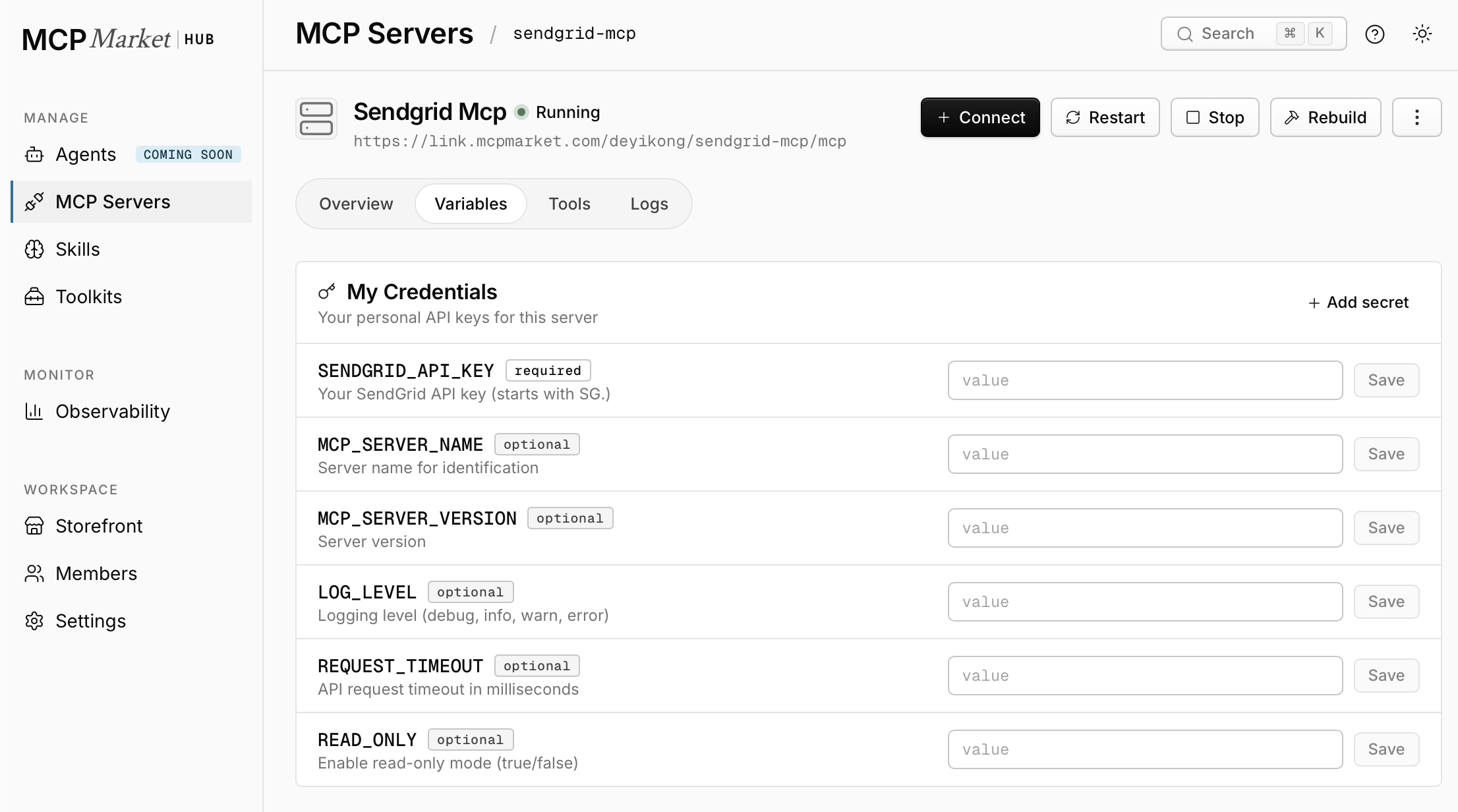
| Variable | Required | Description |
|---|---|---|
SENDGRID_API_KEY | ✅ | Your SendGrid API key (starts with SG.) |
MCP_SERVER_NAME | ❌ | Server name for identification |
MCP_SERVER_VERSION | ❌ | Server version |
LOG_LEVEL | ❌ | Logging level (debug, info, warn, error) |
REQUEST_TIMEOUT | ❌ | API request timeout in milliseconds |
READ_ONLY | ❌ | Enable read-only mode (true/false) |
Each field saves independently — only SENDGRID_API_KEY is required.
Connect a client
Click + Connect on your server's page. MCP Market shows one-click install options for Claude Desktop, Claude Code, Codex CLI, Cursor, VS Code, Windsurf, Cline, JetBrains, Gemini CLI, Amazon Q, Goose, and Continue — pick yours and follow its prompt.
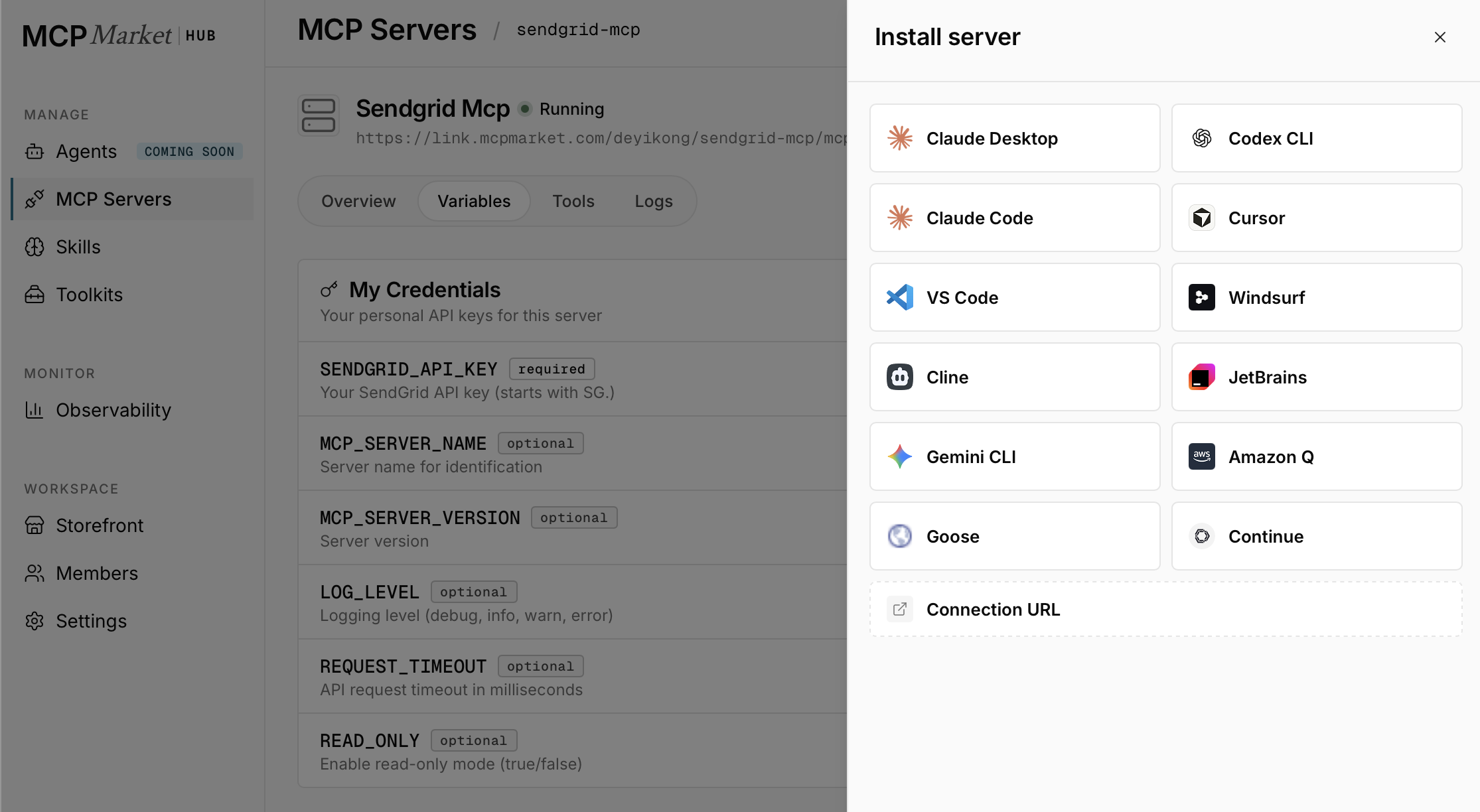
For any other client, use the Connection URL option instead, which gives
you a Streamable HTTP endpoint unique to your deployment. The examples below
use deyikong/sendgrid-mcp for illustration — yours will have your own
username and server name:
https://link.mcpmarket.com/<your-username>/<your-server-name>/mcp
Wire it up the same way as any other self-hosted endpoint, e.g.:
# Claude Code
claude mcp add --transport http sendgrid https://link.mcpmarket.com/<your-username>/<your-server-name>/mcp

# Codex CLI
codex mcp add sendgrid --url https://link.mcpmarket.com/<your-username>/<your-server-name>/mcp
MCP Market manages hosting, TLS, and availability for the deployed server; for account, billing, or deployment questions, refer to MCP Market directly rather than this repository.
Claude Desktop
The official Claude desktop application with native MCP support.
Configuration File Locations:
- macOS:
~/Library/Application Support/Claude/claude_desktop_config.json - Windows:
%APPDATA%/Claude/claude_desktop_config.json
Configuration:
{
  "mcpServers": {
    "sendgrid": {
      "command": "sendgrid-mcp",
      "env": {
        "SENDGRID_API_KEY": "SG.your_api_key_here",
        "READ_ONLY": "true"
      }
    }
  }
}
Optional Configuration:
{
  "mcpServers": {
    "sendgrid": {
      "command": "sendgrid-mcp",
      "env": {
        "SENDGRID_API_KEY": "SG.your_api_key_here",
        "READ_ONLY": "false",
        "LOG_LEVEL": "info",
        "REQUEST_TIMEOUT": "30000"
      }
    }
  }
}
After configuration:
- Save the file
- Restart Claude Desktop
- The SendGrid MCP server will be available in Claude
Claude Code (CLI)
Claude's official command-line interface with MCP support.
Installation:
npm install -g @anthropic-ai/claude-code
Configuration File Location:
- All platforms:
~/.claude/config.json
Configuration:
{
  "mcpServers": {
    "sendgrid": {
      "command": "sendgrid-mcp",
      "env": {
        "SENDGRID_API_KEY": "SG.your_api_key_here",
        "READ_ONLY": "true"
      }
    }
  }
}
Usage:
# Start Claude Code with SendGrid MCP
claude

# The SendGrid tools will be automatically available
# Ask Claude: "List my SendGrid automations"
Cline (VS Code Extension)
Popular VS Code extension with MCP support.
Installation:
- Install the Cline extension from VS Code marketplace
- Open Cline settings
Configuration File:
- Open VS Code Settings
- Search for "Cline: MCP Settings"
- Edit the MCP configuration JSON
Configuration:
{
  "mcpServers": {
    "sendgrid": {
      "command": "sendgrid-mcp",
      "env": {
        "SENDGRID_API_KEY": "SG.your_api_key_here",
        "READ_ONLY": "true"
      }
    }
  }
}
Zed Editor
Modern code editor with built-in AI and MCP support.
Configuration File Location:
- macOS/Linux:
~/.config/zed/settings.json - Windows:
%APPDATA%/Zed/settings.json
Configuration:
{
  "context_servers": {
    "sendgrid-mcp": {
      "command": "sendgrid-mcp",
      "env": {
        "SENDGRID_API_KEY": "SG.your_api_key_here",
        "READ_ONLY": "true"
      }
    }
  }
}
Continue (VS Code Extension)
Open-source autopilot for VS Code with MCP support.
Configuration File Location:
- All platforms:
~/.continue/config.json
Configuration:
{
  "experimental": {
    "modelContextProtocolServers": [
      {
        "command": "sendgrid-mcp",
        "env": {
          "SENDGRID_API_KEY": "SG.your_api_key_here",
          "READ_ONLY": "true"
        }
      }
    ]
  }
}
Generic MCP Client
For any MCP-compatible client not listed above:
Command Line:
# With environment variables
SENDGRID_API_KEY="SG.your_api_key_here" READ_ONLY="true" sendgrid-mcp
Configuration Template:
{
  "command": "sendgrid-mcp",
  "env": {
    "SENDGRID_API_KEY": "SG.your_api_key_here",
    "READ_ONLY": "true"
  }
}
Environment Variables
The server is configured entirely through environment variables. SENDGRID_API_KEY is the only required one.
| Variable | Required | Description | Default |
|---|---|---|---|
SENDGRID_API_KEY | ✅ | Your SendGrid API key (starts with SG.) | - |
READ_ONLY | ❌ | Enable read-only mode (true/false) | true |
MCP_SERVER_NAME | ❌ | Server name for identification | sendgrid-mcp |
MCP_SERVER_VERSION | ❌ | Server version | 1.0.0 |
LOG_LEVEL | ❌ | Logging level (debug, info, warn, error) | info |
REQUEST_TIMEOUT | ❌ | API request timeout in milliseconds | 30000 |
READ_ONLY defaults to true. In this mode every tool is registered and visible, but operations that create, update, delete, or send are blocked at runtime with a clear error message — only list/get/search/browser-link tools actually run. This is the safest default while you're getting set up. See Read-Only Mode for the full breakdown of what's blocked, and set READ_ONLY=false once you're ready to allow write and send operations.
These variables are set inside your MCP client's configuration (as an env block) — see Configure your MCP client. Self-hosted HTTP mode has its own set of variables (transport, auth, TLS) — see Install the server.
Read-Only Mode
Read-Only Mode
By default, the SendGrid MCP server runs in read-only mode (READ_ONLY=true) for safety. All tools are registered and available, but mutable operations are blocked at runtime with helpful error messages.
How Read-Only Mode Works
When READ_ONLY=true (default):
- All tools are registered and visible to the AI assistant
- Non-mutating operations work normally (list, get, search, open browser links)
- Mutating operations are blocked with a clear error message:
❌ Operation blocked: Server is running in READ_ONLY mode. Set READ_ONLY=false in your environment to enable write operations.
Read-Only Safe Operations
These 32 operations work normally when READ_ONLY=true:
Automations & Campaigns:
list_automations,get_automation,open_automation_creator,open_automation_editorlist_single_sends,get_single_send,open_single_send_creator,open_single_send_stats
Contacts, Lists & Segments:
list_contacts,get_contact,search_contacts,search_contacts_by_emailslist_email_listslist_segments,open_segment_creatorlist_custom_fields
Senders:
list_senders,open_csv_uploader
Templates:
list_templates,get_template,get_template_version,open_template_editor
Statistics (all read-only by design):
get_global_stats,get_stats_overview,get_stats_by_browser,get_stats_by_client_type,get_stats_by_device_type,get_stats_by_mailbox_provider,get_stats_by_country,get_category_stats,get_subuser_stats
Utilities:
get_scopes
Blocked Operations in Read-Only Mode
These 26 operations are blocked when READ_ONLY=true:
update_automation_settings,update_automation_step,delete_automationcreate_contact,update_contact,delete_contactcreate_contact_with_lists,remove_contact_from_listscreate_email_list,update_email_list,delete_email_listcreate_custom_field,update_custom_field,delete_custom_fieldcreate_sender,delete_senderupdate_segment,delete_segmentcreate_template,update_template,delete_templatecreate_template_version,update_template_version,delete_template_versioncreate_html_templatesend_mail
Full Access Mode
To enable create, update, delete, and send operations, set READ_ONLY=false in your MCP client's env block:
{
  "env": {
    "SENDGRID_API_KEY": "SG.your_api_key_here",
    "READ_ONLY": "false"
  }
}
This will allow all mutating operations to execute normally while maintaining all read operations.
⚠️ Security Note: Only disable read-only mode if you need write access and trust the environment where the server is running.
Available Tools
The server exposes 154 tools grouped into 22 categories. Every tool is registered regardless of READ_ONLY mode — see Read-Only Mode for which ones are blocked by default.
📚 For natural-language prompts you can say directly to Claude, see EXAMPLE_PROMPTS.md. The examples below show the underlying JSON tool calls.
Tools Summary
| Category | Tools | Read-Only | Mutable |
|---|---|---|---|
| Marketing Automations | 7 | 4 | 3 |
| Single Send Campaigns | 4 | 4 | 0 |
| Contact CRUD Operations | 7 | 4 | 3 |
| Email List Management | 6 | 1 | 5 |
| Segments & Custom Fields | 8 | 3 | 5 |
| Senders & Import | 4 | 2 | 2 |
| Dynamic Templates | 11 | 4 | 7 |
| Mail Sending | 1 | 0 | 1 |
| Email Statistics & Analytics | 9 | 9 | 0 |
| Utilities | 1 | 1 | 0 |
| Suppressions | 21 | 10 | 11 |
| Domain Authentication & Link Branding | 13 | 5 | 8 |
| Event & Inbound Parse Webhooks | 12 | 5 | 7 |
| Tracking Settings | 9 | 5 | 4 |
| Mail Settings | 11 | 6 | 5 |
| API Keys (read-only) | 2 | 2 | 0 |
| Alerts (read-only) | 2 | 2 | 0 |
| Teammates (read-only) | 3 | 3 | 0 |
| Dedicated IPs (read-only) | 11 | 11 | 0 |
| Design Library | 9 | 4 | 5 |
| Email Address Validation | 1 | 0 | 1 |
| Message Search | 2 | 2 | 0 |
| Total | 154 | 87 | 67 |
API Keys, Alerts, Teammates, and Dedicated IPs are deliberately read-only in this server, and SSO/certificate management isn't exposed at all — see Intentionally Unsupported Operations for why.
Marketing Automations
list_automations- List all marketing automations with metadataget_automation- Get detailed information about a specific automationupdate_automation_settings- Update automation-level settings (name, status)update_automation_step- Update individual step settings (status, wait time)delete_automation- Permanently delete an automationopen_automation_creator- Open automation creator in browseropen_automation_editor- Open specific automation editor
Examples
Example — get automation details:
{
  "tool": "get_automation",
  "arguments": {
    "automation_id": "automation_id_here"
  }
}
Example — pause an entire automation:
{
  "tool": "update_automation_settings",
  "arguments": {
    "automation_id": "automation_id_here",
    "status": "paused"
  }
}
Example — update a single step (status, wait time):
{
  "tool": "update_automation_step",
  "arguments": {
    "automation_id": "automation_id_here",
    "step_id": "step_id_here",
    "step_status": "active",
    "wait_time": 1440
  }
}
Example — delete an automation:
{
  "tool": "delete_automation",
  "arguments": {
    "automation_id": "automation_id_here"
  }
}
Single Send Campaigns
list_single_sends- List all single send campaigns with metadataget_single_send- Retrieve detailed content and settings for a single send campaignopen_single_send_creator- Open campaign creator in browser for visual designopen_single_send_stats- View detailed campaign performance statistics
Examples
Example — get a campaign's content and settings:
{
  "tool": "get_single_send",
  "arguments": {
    "singlesend_id": "singlesend_id_here"
  }
}
Contact CRUD Operations
list_contacts- List all contacts with pagination and filteringget_contact- Get detailed information about a specific contactcreate_contact- Create new contacts with custom fieldsupdate_contact- Update existing contact information and custom datadelete_contact- Delete contacts permanently with cleanupsearch_contacts- Search for contacts using advanced query conditionssearch_contacts_by_emails- Search for specific contacts by email addresses
Examples
Example — create a new contact:
{
  "tool": "create_contact",
  "arguments": {
    "contacts": [
      {
        "email": "newuser@example.com",
        "first_name": "Jane",
        "last_name": "Smith"
      }
    ]
  }
}
Example — search for contacts by email:
{
  "tool": "search_contacts_by_emails",
  "arguments": {
    "emails": ["john@example.com", "jane@example.com"]
  }
}
Example — search contacts with a query condition:
{
  "tool": "search_contacts",
  "arguments": {
    "query": "email LIKE '@example.com'",
    "page_size": 10
  }
}
Example — update a contact:
{
  "tool": "update_contact",
  "arguments": {
    "contacts": [
      {
        "id": "contact_id_here",
        "first_name": "John",
        "last_name": "Updated"
      }
    ]
  }
}
Example — delete contacts:
{
  "tool": "delete_contact",
  "arguments": {
    "contact_ids": ["contact_id_1", "contact_id_2"]
  }
}
Email List Management
list_email_lists- List all email listscreate_email_list- Create a new email listupdate_email_list- Update email list propertiesdelete_email_list- Delete an email listcreate_contact_with_lists- Create contacts and assign to listsremove_contact_from_lists- Remove contacts from a specific list
Examples
Example — list email lists:
{
  "tool": "list_email_lists",
  "arguments": {
    "page_size": 100
  }
}
Example — rename an email list:
{
  "tool": "update_email_list",
  "arguments": {
    "list_id": "list_id_here",
    "name": "Updated List Name"
  }
}
Example — remove contacts from a list:
{
  "tool": "remove_contact_from_lists",
  "arguments": {
    "list_id": "list_id_here",
    "contact_ids": ["contact_id_1", "contact_id_2"]
  }
}
Example — delete an email list:
{
  "tool": "delete_email_list",
  "arguments": {
    "list_id": "list_id_here"
  }
}
Segments & Custom Fields
list_segments- List dynamic segments with parent relationships and criteriaopen_segment_creator- Open segment creator in browser for visual query buildingupdate_segment- Update existing segment name or query criteria with real-time refreshdelete_segment- Delete an existing segment (contacts remain unaffected)list_custom_fields- List custom field definitions with data typescreate_custom_field- Create new custom fields (Text, Number, Date types)update_custom_field- Update existing custom field definitionsdelete_custom_field- Delete custom field definitions with data cleanup
Examples
Example — rename a segment:
{
  "tool": "update_segment",
  "arguments": {
    "segment_id": "segment_id_here",
    "name": "Updated Segment Name"
  }
}
Example — update a segment's query criteria:
{
  "tool": "update_segment",
  "arguments": {
    "segment_id": "segment_id_here",
    "query_dsl": "{\"and\": [{\"field\": \"email\", \"value\": \"@example.com\", \"operator\": \"like\"}]}"
  }
}
Example — delete a segment:
{
  "tool": "delete_segment",
  "arguments": {
    "segment_id": "segment_id_here"
  }
}
Example — create a custom field:
{
  "tool": "create_custom_field",
  "arguments": {
    "name": "customer_tier",
    "field_type": "Text"
  }
}
Example — update a custom field:
{
  "tool": "update_custom_field",
  "arguments": {
    "field_id": "field_id_here",
    "name": "customer_level"
  }
}
Example — delete a custom field:
{
  "tool": "delete_custom_field",
  "arguments": {
    "field_id": "field_id_here"
  }
}
Senders & Import
list_senders- List verified sender identitiescreate_sender- Create new sender identitydelete_sender- Delete a verified sender identityopen_csv_uploader- Open CSV upload interface
Examples
Example — create a sender identity:
{
  "tool": "create_sender",
  "arguments": {
    "nickname": "Marketing Team",
    "from": { "email": "marketing@yourdomain.com", "name": "Your Company" },
    "reply_to": { "email": "replies@yourdomain.com", "name": "Your Company" },
    "address": "123 Main St",
    "city": "Denver",
    "state": "CO",
    "zip": "80202",
    "country": "United States"
  }
}
Example — delete a sender identity:
{
  "tool": "delete_sender",
  "arguments": {
    "sender_id": "sender_id_here"
  }
}
Dynamic Templates
list_templates- List all dynamic and legacy templatesget_template- Get details of a specific template including all versionscreate_template- Create a new dynamic templateupdate_template- Update template name and settingsdelete_template- Delete a template and all its versionscreate_template_version- Create a new version with HTML content and settingsget_template_version- Get details of a specific template versionupdate_template_version- Update version content, subject, and settingsdelete_template_version- Delete a specific template versioncreate_html_template- Create complete template with HTML content in one step (perfect for AI agents)open_template_editor- Open SendGrid's visual template editor in browser
Templates support Handlebars syntax for dynamic content ({{variable}}, {{#each}}, {{#if}}), responsive HTML with inline CSS, up to 300 versions per template, test-data previews, and automatic plain-text generation.
Examples
Example — create a complete template in one step (best for AI agents):
{
  "tool": "create_html_template",
  "arguments": {
    "template_name": "Welcome Email",
    "version_name": "Version 1.0",
    "subject": "Welcome to {{companyName}}, {{firstName}}!",
    "html_content": "<!DOCTYPE html><html><head><meta charset=\"utf-8\"><title>Welcome</title></head><body style=\"font-family: Arial, sans-serif; max-width: 600px; margin: 0 auto;\"><h1 style=\"color: #333;\">Welcome {{firstName}}!</h1><p>Thank you for joining {{companyName}}. We're excited to have you on board.</p></body></html>",
    "test_data": "{\"firstName\":\"John\",\"companyName\":\"Acme Corp\"}"
  }
}
Example — add a new version with HTML content:
{
  "tool": "create_template_version",
  "arguments": {
    "template_id": "your_template_id",
    "name": "Newsletter v1.0",
    "subject": "{{month}} Newsletter - {{companyName}}",
    "html_content": "<!DOCTYPE html><html><head><meta charset=\"utf-8\"></head><body><h1>{{month}} Newsletter</h1>{{#each articles}}<div><h2>{{title}}</h2><p>{{summary}}</p><a href=\"{{link}}\">Read More</a></div>{{/each}}</body></html>",
    "test_data": "{\"month\":\"January\",\"companyName\":\"Acme\",\"articles\":[{\"title\":\"Article 1\",\"summary\":\"Summary here\",\"link\":\"https://example.com\"}]}"
  }
}
Mail Sending
send_mail- Send transactional emails (supports templates with dynamic template data)
Examples
Example — send a simple email:
{
  "tool": "send_mail",
  "arguments": {
    "personalizations": [
      {
        "to": [{"email": "recipient@example.com", "name": "John Doe"}],
        "subject": "Hello from SendGrid MCP!"
      }
    ],
    "from": {"email": "sender@yourdomain.com", "name": "Your Name"},
    "content": [
      {
        "type": "text/plain",
        "value": "Hello! This email was sent via SendGrid MCP server."
      }
    ]
  }
}
Example — send using a dynamic template:
{
  "tool": "send_mail",
  "arguments": {
    "personalizations": [
      {
        "to": [{"email": "user@example.com", "name": "John Doe"}],
        "dynamic_template_data": {
          "firstName": "John",
          "companyName": "Acme Corp",
          "orderNumber": "12345",
          "items": [
            {"name": "Product A", "price": "29.99"},
            {"name": "Product B", "price": "19.99"}
          ]
        }
      }
    ],
    "from": {"email": "noreply@yourcompany.com", "name": "Your Company"},
    "template_id": "d-1234567890abcdef1234567890abcdef"
  }
}
Email Statistics & Analytics
get_global_stats- Retrieve overall email performance metricsget_stats_overview- Get comprehensive statistics across multiple dimensionsget_stats_by_browser- Statistics broken down by browser type (Chrome, Firefox, Safari, etc.)get_stats_by_client_type- Statistics by email client type (desktop, mobile, webmail)get_stats_by_device_type- Statistics by device type (desktop, mobile, tablet)get_stats_by_mailbox_provider- Statistics by mailbox provider (Gmail, Outlook, Yahoo, etc.)get_stats_by_country- Statistics by country and state/provinceget_category_stats- Statistics for specific email categories (13-month history)get_subuser_stats- Statistics for specific subuser accounts
Tracks delivery, open, and click-through rates; bounce rates (hard/soft), spam reports, and unsubscribes; geographic performance and device preferences; email client compatibility and browser rendering; and provider-specific deliverability.
Examples
Example — global email statistics:
{
  "tool": "get_global_stats",
  "arguments": {
    "start_date": "2024-01-01",
    "end_date": "2024-01-31",
    "aggregated_by": "day"
  }
}
Example — statistics by mailbox provider:
{
  "tool": "get_stats_by_mailbox_provider",
  "arguments": {
    "start_date": "2024-01-01",
    "end_date": "2024-01-07",
    "aggregated_by": "day",
    "mailbox_providers": "gmail.com,outlook.com,yahoo.com"
  }
}
Example — geographic performance statistics:
{
  "tool": "get_stats_by_country",
  "arguments": {
    "start_date": "2024-01-01",
    "end_date": "2024-01-31",
    "country": "US",
    "aggregated_by": "week"
  }
}
Example — comprehensive statistics overview:
{
  "tool": "get_stats_overview",
  "arguments": {
    "start_date": "2024-01-01",
    "end_date": "2024-01-07",
    "aggregated_by": "day",
    "include_subusers": false
  }
}
Utilities
get_scopes- Get available API permission scopes (no arguments)
Suppressions
list_suppression_groups- List all unsubscribe (suppression) groups on the accountcreate_suppression_group- Create a new unsubscribe (suppression) groupget_suppression_group- Get details about a specific unsubscribe (suppression) groupupdate_suppression_group- Update the name, description, or default status of an existing suppression groupdelete_suppression_group- Permanently delete an unsubscribe (suppression) group. This action cannot be undone.list_group_suppressions- List all email addresses that are unsubscribed from a specific suppression groupadd_group_suppressions- Add one or more email addresses to a specific suppression group's unsubscribe listremove_group_suppression- Remove a single email address from a specific suppression group's unsubscribe list. This only re-permits mail assigned to this group's category -- it is not a global resubscribe.list_global_suppressions- List email addresses on the account-wide global unsubscribe list, optionally filtered by a time rangeadd_global_suppression- Add recipients to the account-wide global unsubscribe list -- they will stop receiving all non-transactional mail from this accountget_global_suppression- Check whether a specific email address is on the account-wide global unsubscribe listdelete_global_suppression- Remove an email address from the account-wide global suppression list, effectively resubscribing them to non-transactional maillist_bounces- List all email addresses that have bounced, optionally filtered by a time rangeget_bounce- Get bounce event(s) recorded for a specific email addressdelete_bounce- Remove a bounce record for an email address so this address can receive mail againlist_blocks- List all email addresses currently on the blocks list, optionally filtered by a time rangedelete_block- Remove an email address from the blocks list so this address can receive mail againlist_spam_reports- List all email addresses that have reported mail as spam, optionally filtered by a time rangedelete_spam_report- Remove an email address from the spam reports list so this address can receive mail againlist_invalid_emails- List all email addresses that have been marked invalid, optionally filtered by a time rangedelete_invalid_email- Remove an email address from the invalid emails list so this address can receive mail again
Domain Authentication & Link Branding
list_authenticated_domains- List all authenticated (whitelabel) domains configured for sending mailget_authenticated_domain- Get detailed information about a specific authenticated domain, including its DNS recordscreate_authenticated_domain- Set up domain authentication (SPF/DKIM) for sending mail from a custom domainupdate_authenticated_domain- Update the custom SPF or default settings of an existing authenticated domaindelete_authenticated_domain- Permanently delete an authenticated domain. This action cannot be undone.validate_authenticated_domain- Check whether the domain's DNS records are correctly configured for authenticationget_default_authenticated_domain- Get the authenticated domain currently set as the default for sending maillist_branded_links- List all branded links (link whitelabels) configured for click trackingget_branded_link- Get detailed information about a specific branded link, including its DNS recordscreate_branded_link- Set up branded link tracking (click tracking through the sender's own domain instead of sendgrid.net)update_branded_link- Update the default setting of an existing branded linkdelete_branded_link- Permanently delete a branded link. This action cannot be undone.validate_branded_link- Check whether the branded link's DNS records are correctly configured
Event & Inbound Parse Webhooks
list_event_webhooks- List all configured Event Webhook settings on the accountget_event_webhook- Get the configuration of a specific Event Webhook by IDcreate_event_webhook- Creates a new Event Webhook that POSTs email events (delivered, bounced, opened, clicked, etc.) to the given URLupdate_event_webhook- Update the configuration of an existing Event Webhookdelete_event_webhook- Permanently delete an Event Webhook configuration. This action cannot be undone.test_event_webhook- Sends a test event payload to the given webhook URL to verify it's reachable and correctly configuredlist_inbound_parse_settings- List all configured Inbound Parse webhook settings on the accountget_inbound_parse_setting- Get the Inbound Parse webhook configuration for a specific hostnamecreate_inbound_parse_setting- Configures inbound email parsing so mail sent to the given hostname is POSTed to the given URLupdate_inbound_parse_setting- Update the Inbound Parse webhook configuration for a specific hostnamedelete_inbound_parse_setting- Permanently delete an Inbound Parse webhook configuration for a hostname. This action cannot be undone.get_inbound_parse_stats- Get statistics on the number of inbound emails parsed over a given date range
Tracking Settings
get_tracking_settings- Retrieve all tracking settings (click, open, subscription, Google Analytics) in one callget_click_tracking_settings- Retrieve the current click tracking settingupdate_click_tracking_settings- Enable or disable click tracking on links within emailsget_google_analytics_settings- Retrieve the current Google Analytics tracking settingsupdate_google_analytics_settings- Update Google Analytics tracking settings, including UTM campaign, content, medium, source, and term valuesget_open_tracking_settings- Retrieve the current open tracking settingupdate_open_tracking_settings- Enable or disable open tracking, which inserts an invisible pixel to record when an email is openedget_subscription_tracking_settings- Retrieve the current subscription tracking settingsupdate_subscription_tracking_settings- Update subscription tracking settings, including the unsubscribe link content, landing page, URL, and replacement tag
Mail Settings
get_all_mail_settings- Retrieve all mail settings (address whitelist, bounce purge, footer, forward bounce, forward spam, etc.) in one callget_address_whitelist_settings- Retrieve the current address whitelist mail setting, which controls which email addresses or domains bypass all suppression listsupdate_address_whitelist_settings- Update the address whitelist setting that controls which email addresses or domains bypass all suppression listsget_bounce_purge_settings- Retrieve the current bounce purge mail setting, which automatically purges old bounce records after a configured number of daysupdate_bounce_purge_settings- Update the bounce purge setting that automatically purges old bounce records after a configured number of daysget_footer_settings- Retrieve the current footer mail setting, which appends a footer to every outgoing emailupdate_footer_settings- Update the footer setting that appends a footer to every outgoing emailget_forward_bounce_settings- Retrieve the current forward bounce mail setting, which forwards bounce notifications to a given email addressupdate_forward_bounce_settings- Update the forward bounce setting that forwards bounce notifications to a given email addressget_forward_spam_settings- Retrieve the current forward spam mail setting, which forwards spam report notifications to a given email addressupdate_forward_spam_settings- Update the forward spam setting that forwards spam report notifications to a given email address
API Keys (read-only)
list_api_keys- List all API keys on the account (names and IDs only, not the secret key values)get_api_key- Get details for a specific API key, including its scopes
Alerts (read-only)
list_alerts- List all usage/stats alerts configured on the accountget_alert- Get details for a specific alert
Teammates (read-only)
list_teammates- List all teammates (users) on the accountget_teammate- Get details for a specific teammate, including their permission scopeslist_pending_teammates- List pending teammate invitations that haven't been accepted yet
Dedicated IPs (read-only)
list_ip_addresses- List all IP addresses assigned to the accountget_ip_address- Get details for a specific IP address, including its warmup status and assigned subuserslist_assigned_ips- List all IP addresses that are currently assigned to a subuserlist_ip_pools- List all IP pools on the accountget_ip_pool- Get details for a specific IP pool, including the IP addresses it containsget_remaining_ips- Get the count and cost of additional dedicated IP addresses available for purchaselist_ip_warmups- List all IP addresses currently in the warmup processget_ip_warmup_status- Get the warmup status for a specific IP addresslist_allowed_ips- List IP addresses allowed to access the account via the API/UI (the access allowlist)get_allowed_ip- Get details for a specific entry in the access allowlistlist_access_activity- List recent account access attempts (successful and blocked logins/API calls)
Design Library
list_designs- List all custom email designs in the Design Librarycreate_design- Create a new custom email design in the Design Library from raw HTMLget_design- Get details for a specific design in the Design Libraryupdate_design- Update the content or metadata of an existing design in the Design Librarydelete_design- Permanently delete a custom design from the Design Library. This action cannot be undone.duplicate_design- Create a copy of an existing design in the Design Librarylist_prebuilt_designs- List SendGrid's built-in pre-made design templatesget_prebuilt_design- Get details for one of SendGrid's built-in pre-made designsduplicate_prebuilt_design- Create an editable copy of one of SendGrid's built-in pre-made designs
Email Address Validation
validate_email- Check whether an email address is valid and likely to be deliverable, using SendGrid's Email Address Validation API (consumes a billed validation credit per call)
Message Search
search_email_activity- Search sent message activity using SendGrid's SGQL filter syntax (e.g. by recipient, status, or subject) -- useful for troubleshooting why a specific email wasn't deliveredget_message_details- Get full delivery event history and details for a single sent message by its message ID
Available Resources
sendgrid://automations- Marketing automations datasendgrid://singlesends- Single send campaigns datasendgrid://lists- Email lists datasendgrid://contacts- Contact segments datasendgrid://suppressions- Suppression lists (bounces, spam, etc.)- `sendgrid://a
Installation
Source-derived launch command. Check the maintainer’s required arguments and credentials before running:
npx -y sendgrid-mcpSet up in your AI client
Merge this template into ~/Library/Application Support/Claude/claude_desktop_config.json. Keep existing servers. Add any arguments, credentials, and permissions required by the maintainer; this template has not been install-tested.
{
  "mcpServers": {
    "io-github-deyikong-sendgrid-mcp": {
      "command": "npx",
      "args": [
        "-y",
        "sendgrid-mcp"
      ]
    }
  }
}
Restart Claude Desktop completely for changes to take effect. Confirm the server appears connected in the client’s tool list, then try a read-only example from its documentation.
Claude Desktop setup referencePackage
Compatible MCP Clients
SendGrid MCP Server works with any MCP-compatible client. Copy the config snippet from the Configuration section above and add it to the file shown for your client, then restart the application.
- Claude Desktop
~/Library/Application Support/Claude/claude_desktop_config.jsonRestart Claude Desktop completely for changes to take effect. - Cursor
~/.cursor/mcp.jsonRestart Cursor for changes to take effect. - VS Code
.vscode/mcp.jsonReload VS Code window for changes to take effect. - Windsurf
~/.codeium/windsurf/mcp_config.jsonRestart Windsurf for changes to take effect. - Claude Code
.mcp.jsonSave at the project root, then start Claude Code in that project and review the MCP server approval prompt. Keep real credentials out of shared files.