Bult
Deploy and manage Bult apps from AI coding agents.
@bultcloud/mcp-server

Official Model Context Protocol (MCP) server for Bult.ai, a DevOps platform and cloud hosting Platform-as-a-Service for deploying apps, GitHub repositories, Docker images, databases, and services with AI agents.
Use Bult MCP with Claude Desktop, Claude Code, Cursor, Codex, and other MCP-compatible clients to deploy apps, manage cloud infrastructure, inspect logs, and troubleshoot deployments through the Bult API.
Demo
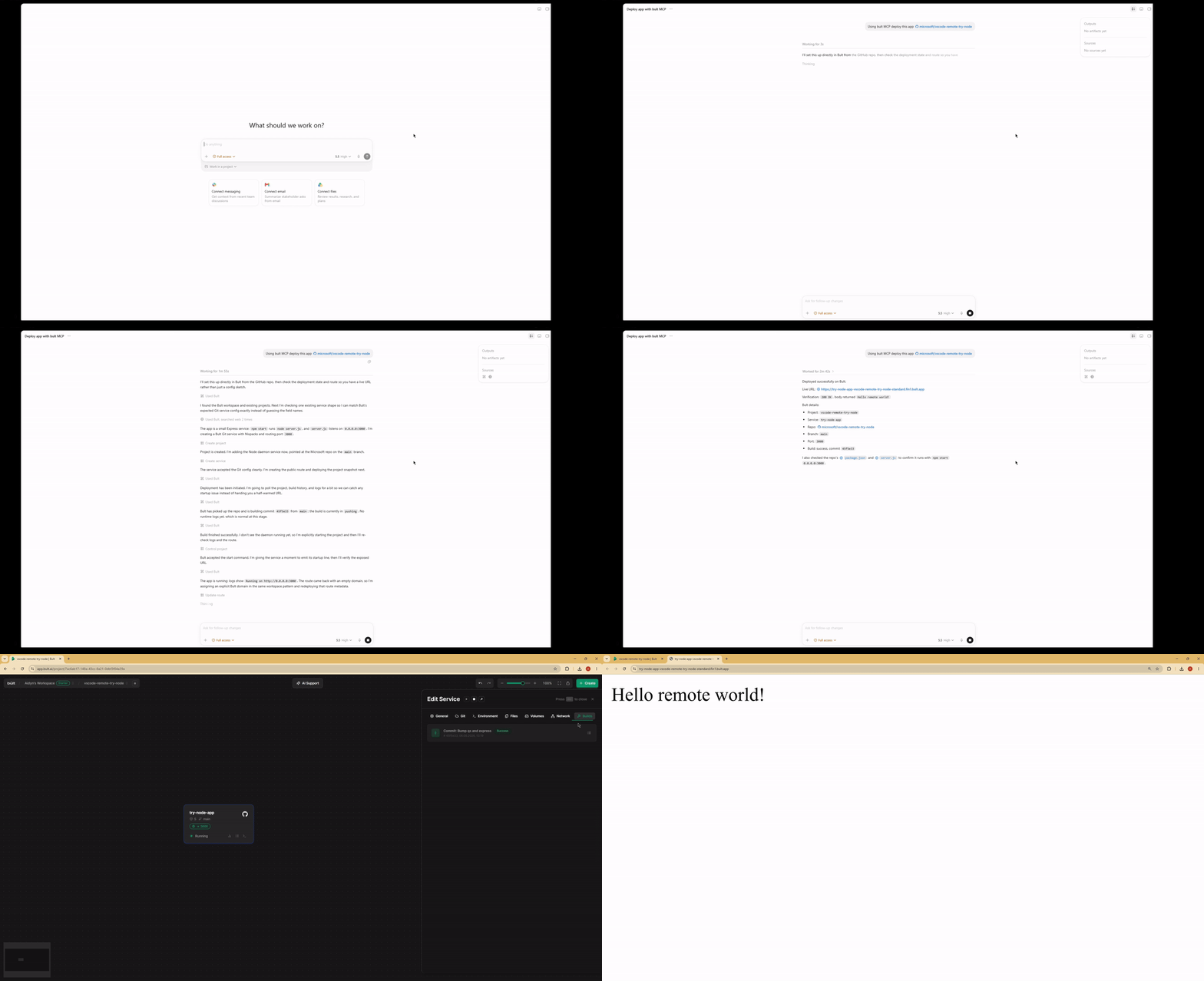
Features
- Deploy GitHub repositories, Docker images, databases, and app services from MCP-compatible AI agents.
- Project lifecycle tools: list, inspect, create, update, delete, deploy, start, stop, and discard changes.
- Service management for daemon and database services, including Docker image and Git-based deployments.
- Persistent volumes, route/domain mappings, templates, service logs, and build history.
- MCP tool annotations for read-only, idempotent, and destructive operations where supported.
- Works over stdio with Claude Desktop, Claude Code, Cursor, Google Antigravity and other MCP-compatible clients.
When to use Bult MCP
Use Bult MCP when you want an AI coding agent to deploy and operate cloud hosting resources for you. Common workflows include deploying a GitHub repo from Cursor, deploying the current project from Claude Code, launching a Docker image, creating a database service, adding a public route, checking build logs, and debugging failed deployments.
Requirements
- Node.js 18 or newer.
- Bult API token.
Installation
If you install the package globally, use the bult-mcp binary:
npm install -g @bultcloud/mcp-server
bult-mcp
You can also run it with npx from MCP client configs:
npx -y @bultcloud/mcp-server
Configuration
The server reads its configuration from environment variables.
| Variable | Required | Description |
|---|---|---|
BULT_API_URL | Yes | Bult API base URL, https://app.bult.ai. |
BULT_API_TOKEN | Yes | API token used for Bearer authentication. |
The server exits during startup if either variable is missing.
MCP Client Setup
Claude Desktop
Add the server to claude_desktop_config.json.
Using npx:
{
  "mcpServers": {
    "bult": {
      "command": "npx",
      "args": ["-y", "@bultcloud/mcp-server"],
      "env": {
        "BULT_API_URL": "https://app.bult.ai",
        "BULT_API_TOKEN": "your-token"
      }
    }
  }
}
Claude Code
Using npx:
claude mcp add bult \
  -e BULT_API_URL=https://app.bult.ai \
  -e BULT_API_TOKEN=your-token \
  -- npx -y @bultcloud/mcp-server
Codex CLI
Using npx:
codex mcp add \
  --env BULT_API_URL=https://app.bult.ai \
  --env BULT_API_TOKEN=your-token \
  bult \
  -- npx -y @bultcloud/mcp-server
Available Tools
Projects
| Tool | Description |
|---|---|
list-projects | List all projects in the workspace. |
get-project | Get a project overview with services, volumes, and routes. |
create-project | Create a new project. |
update-project | Update a project name. |
delete-project | Delete a project and all of its resources. |
deploy-project | Deploy project changes and create a version snapshot. |
control-project | Start, stop, or discard project changes. |
Services
| Tool | Description |
|---|---|
list-services | List all services in a project. |
get-service | Get service details and configuration. |
create-service | Create a daemon or database service. |
update-service | Update service configuration. |
delete-service | Delete a service. |
control-service | Start, stop, or rebuild a service. |
Volumes
| Tool | Description |
|---|---|
create-volume | Create a persistent storage volume. |
update-volume | Update a volume name or size. |
delete-volume | Delete a volume. |
wipe-volume | Irreversibly wipe all data from a volume. |
Routes
| Tool | Description |
|---|---|
create-route | Create a domain or path mapping for a service. |
update-route | Update route configuration. |
delete-route | Delete a route. |
Templates
| Tool | Description |
|---|---|
list-templates | List available project templates. |
apply-template | Apply a template to a project. |
Logs and Builds
| Tool | Description |
|---|---|
get-service-logs | Read service logs with cursor-based pagination. |
list-builds | List build history for a service. |
Example Prompts
- Deploy this GitHub repo to Bult and give me the public URL.
- Deploy the current project to Bult.
- Check why my deployment failed.
- Show the latest logs for my app.
- Set DATABASE_URL and restart the service.
- Deploy this Docker image to Bult.
- List my Bult projects and services.
Development
npm run dev      # run with tsx, no build step
npm run build    # compile TypeScript to dist/
npm run lint     # type-check without emitting files
Project layout:
src/index.ts          MCP server entrypoint
src/client.ts         Bult API client
src/tools/*.ts        MCP tool registrations by resource type
Security
BULT_API_TOKEN grants access to your Bult resources. Keep it out of
source control, shell history, issue reports, and screenshots. Prefer scoped or
rotatable tokens when available.
Some tools can create, delete, deploy, stop, or wipe resources. Review tool calls from your MCP client before approving destructive actions.
Privacy Policy
This MCP server connects your MCP client to Bult.ai using the API token you provide. Requests are sent to Bult.ai to perform actions such as listing projects, deploying services, managing routes and volumes, and reading logs.
The server does not store your API token. Tokens are passed through your MCP client configuration or extension settings. For Bult.ai data handling practices, see the Bult.ai Privacy Policy.
Contributing
Issues and pull requests are welcome at github.com/bultcloud/mcp-server.
Before opening a pull request, run:
npm run lint
npm run build
License
This project is licensed under the MIT License.
Installation
Source-derived launch command. Check the maintainer’s required arguments and credentials before running:
npx -y @bultcloud/mcp-serverSet up in your AI client
Merge this template into ~/Library/Application Support/Claude/claude_desktop_config.json. Keep existing servers. Add any arguments, credentials, and permissions required by the maintainer; this template has not been install-tested.
{
  "mcpServers": {
    "io-github-bultcloud-mcp-server": {
      "command": "npx",
      "args": [
        "-y",
        "@bultcloud/mcp-server"
      ]
    }
  }
}
Restart Claude Desktop completely for changes to take effect. Confirm the server appears connected in the client’s tool list, then try a read-only example from its documentation.
Claude Desktop setup referencePackage
Compatible MCP Clients
Bult works with any MCP-compatible client. Copy the config snippet from the Configuration section above and add it to the file shown for your client, then restart the application.
- Claude Desktop
~/Library/Application Support/Claude/claude_desktop_config.jsonRestart Claude Desktop completely for changes to take effect. - Cursor
~/.cursor/mcp.jsonRestart Cursor for changes to take effect. - VS Code
.vscode/mcp.jsonReload VS Code window for changes to take effect. - Windsurf
~/.codeium/windsurf/mcp_config.jsonRestart Windsurf for changes to take effect. - Claude Code
.mcp.jsonSave at the project root, then start Claude Code in that project and review the MCP server approval prompt. Keep real credentials out of shared files.