io.github.aplaceforallmystuff/mcp-pihole
Pi-hole v6 MCP server - manage DNS blocking, stats, whitelists/blacklists
MCP Pi-hole Server



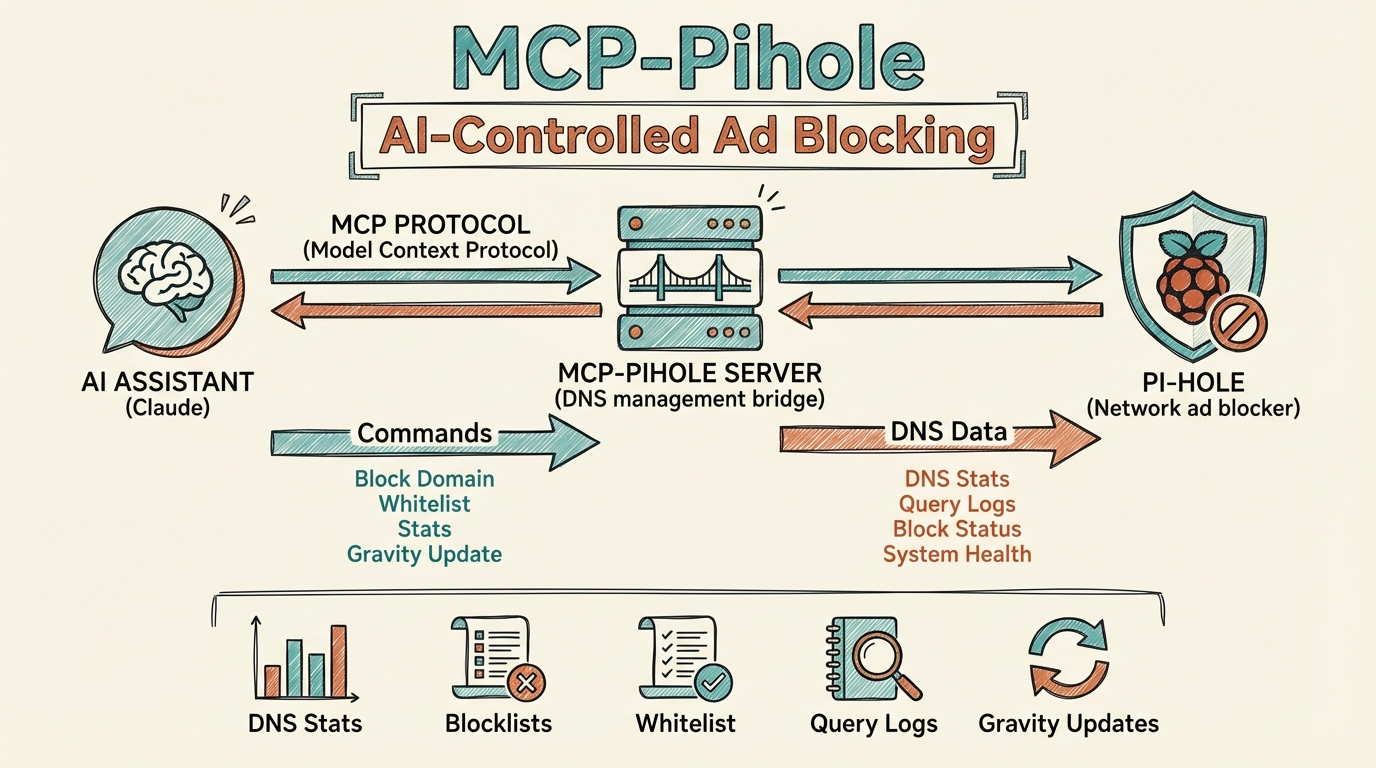
An MCP (Model Context Protocol) server that connects AI assistants like Claude to your Pi-hole network-wide ad blocker. Manage DNS blocking, view statistics, control whitelists/blacklists, and more through natural language.
Why Use This?
If you're running Pi-hole on your network, this MCP server lets you:
- Monitor DNS traffic - View query statistics, top blocked domains, and client activity
- Control blocking - Enable/disable Pi-hole blocking instantly or with a timer
- Manage lists - Add or remove domains from whitelist and blacklist without opening the web UI
- View query logs - See recent DNS queries with detailed information
- Maintain your Pi-hole - Update gravity (blocklists) and flush DNS cache
Features
| Category | Tools |
|---|---|
| Statistics | Query totals, blocking percentage, top domains, top clients |
| Blocking Control | Enable, disable (with optional timer), check status |
| Domain Lists | Whitelist/blacklist CRUD operations |
| Query Log | Recent DNS queries with client, status, response time |
| Maintenance | Update gravity, flush cache |
| Visualizations | ASCII art dashboards and bar charts with ANSI colors |
Prerequisites
- Node.js 18+
- Pi-hole v6 with API enabled
- Pi-hole app password (generated in Pi-hole settings)
- Network access to Pi-hole from your machine
Installation
Option 1: Install from npm (recommended)
npx mcp-pihole-server
Or install globally:
npm install -g mcp-pihole-server
Option 2: Clone and Build
git clone https://github.com/aplaceforallmystuff/mcp-pihole.git
cd mcp-pihole
npm install
npm run build
Configuration
1. Get Your Pi-hole App Password
- Open your Pi-hole web interface
- Go to Settings > API
- Generate a new app password
- Copy the password (it's only shown once)
2. Configure Your MCP Client
For Claude Desktop
Add to your Claude Desktop config file:
macOS: ~/Library/Application Support/Claude/claude_desktop_config.json
Windows: %APPDATA%\Claude\claude_desktop_config.json
{
  "mcpServers": {
    "pihole": {
      "command": "npx",
      "args": ["-y", "mcp-pihole-server"],
      "env": {
        "PIHOLE_URL": "http://your-pihole-address:8080",
        "PIHOLE_PASSWORD": "your-app-password"
      }
    }
  }
}
For Claude Code
Add to ~/.claude.json:
{
  "mcpServers": {
    "pihole": {
      "command": "npx",
      "args": ["-y", "mcp-pihole-server"],
      "env": {
        "PIHOLE_URL": "http://your-pihole-address:8080",
        "PIHOLE_PASSWORD": "your-app-password"
      }
    }
  }
}
Environment Variables
| Variable | Description | Example |
|---|---|---|
PIHOLE_URL | Pi-hole web interface URL | http://pihole.local:8080 |
PIHOLE_PASSWORD | Pi-hole app password | Your app password from settings |
Usage Examples
Once configured, you can interact with Pi-hole through natural language:
View Statistics
"Show me Pi-hole stats"
"What are the top blocked domains?"
"Which clients are making the most queries?"
Control Blocking
"Is Pi-hole blocking enabled?"
"Disable Pi-hole for 5 minutes"
"Re-enable Pi-hole blocking"
Manage Domain Lists
"Add example.com to the whitelist"
"Block ads.trackersite.com"
"Show me all whitelisted domains"
View Query Log
"Show me the last 50 DNS queries"
"What domains has my phone been querying?"
Visual Dashboards
"Show me Pi-hole stats with visualize: true"
"Get top blocked domains with visualization"
Available Tools
Statistics
pihole_get_stats- Get comprehensive Pi-hole statisticspihole_get_top_blocked- Get top blocked domainspihole_get_top_permitted- Get top permitted domainspihole_get_top_clients- Get top clients by query countpihole_get_query_log- Get recent DNS queries
Blocking Control
pihole_get_blocking_status- Check if blocking is enabledpihole_enable_blocking- Enable DNS blockingpihole_disable_blocking- Disable blocking (optionally with timer)
Domain Management
pihole_get_whitelist- List all whitelisted domainspihole_get_blacklist- List all blacklisted domainspihole_add_to_whitelist- Add domain to whitelistpihole_add_to_blacklist- Add domain to blacklistpihole_remove_from_whitelist- Remove domain from whitelistpihole_remove_from_blacklist- Remove domain from blacklist
Maintenance
pihole_update_gravity- Update blocklists (gravity)pihole_flush_cache- Flush DNS cache
ASCII Visualizations
This server supports colorful ASCII art visualizations rendered directly in your terminal using ANSI escape codes.
Supported Tools
The following tools support the optional visualize: true parameter:
| Tool | Visualization |
|---|---|
pihole_get_stats | Full dashboard with summary stats, top clients, blocked domains, and permitted domains |
pihole_get_top_blocked | Red bar chart of blocked domains |
pihole_get_top_permitted | Green bar chart of permitted domains |
pihole_get_top_clients | Blue bar chart of client activity |
Usage
Pass visualize: true to any supported tool:
{
  "name": "pihole_get_stats",
  "arguments": {
    "visualize": true
  }
}
When visualize is not set or false, tools return JSON data as usual.
Example Output
╔════════════════════════════════════════════════════════════════════════════╗
║                         🛡️  PI-HOLE DASHBOARD                          ║
╠════════════════════════════════════════════════════════════════════════════╣
║                                                                            ║
║ 📊 SUMMARY                                                                 ║
║ ────────────────────────────────────────────────────────────────────────── ║
║ Total Queries:      73K             Domains Blocked:    2.4M               ║
║ Blocked:            22K             Active Clients:     28                 ║
║ Block Rate:         29.7%           Total Clients:      115                ║
╠════════════════════════════════════════════════════════════════════════════╣
║ 🔝 TOP CLIENTS                                                             ║
║ ────────────────────────────────────────────────────────────────────────── ║
║ 192.168.1.52     ████████████████████████████████████████   28K (38%)      ║
║ 192.168.1.51     ███████████████████▋                       14K (19%)      ║
╚════════════════════════════════════════════════════════════════════════════╝
(Colors appear in terminals that support ANSI escape codes)
Development
# Run in development mode (auto-reloads)
npm run watch

# Build for production
npm run build

# Run the built version
node dist/index.js
Troubleshooting
"PIHOLE_URL and PIHOLE_PASSWORD environment variables are required"
Ensure both environment variables are set in your MCP config.
"Authentication failed"
Your app password is invalid or expired. Generate a new one from Pi-hole Settings > API.
"API request failed: 401"
Session expired. The server will automatically re-authenticate, but if issues persist, check your password.
Connection refused
Ensure Pi-hole is running and the URL is correct. Check that you can access the Pi-hole web interface from your machine.
Contributing
Contributions are welcome! Please see CONTRIBUTING.md for guidelines.
License
MIT License - see LICENSE for details.
Links
Installation
Source-derived launch command. Check the maintainer’s required arguments and credentials before running:
npx -y mcp-pihole-serverSet up in your AI client
Merge this template into ~/Library/Application Support/Claude/claude_desktop_config.json. Keep existing servers. Add any arguments, credentials, and permissions required by the maintainer; this template has not been install-tested.
{
  "mcpServers": {
    "io-github-aplaceforallmystuff-mcp-pihole": {
      "command": "npx",
      "args": [
        "-y",
        "mcp-pihole-server"
      ]
    }
  }
}
Restart Claude Desktop completely for changes to take effect. Confirm the server appears connected in the client’s tool list, then try a read-only example from its documentation.
Claude Desktop setup referencePackage
mcp-pihole-servernpmCompatible MCP Clients
io.github.aplaceforallmystuff/mcp-pihole works with any MCP-compatible client. Copy the config snippet from the Configuration section above and add it to the file shown for your client, then restart the application.
- Claude Desktop
~/Library/Application Support/Claude/claude_desktop_config.jsonRestart Claude Desktop completely for changes to take effect. - Cursor
~/.cursor/mcp.jsonRestart Cursor for changes to take effect. - VS Code
.vscode/mcp.jsonReload VS Code window for changes to take effect. - Windsurf
~/.codeium/windsurf/mcp_config.jsonRestart Windsurf for changes to take effect. - Claude Code
.mcp.jsonSave at the project root, then start Claude Code in that project and review the MCP server approval prompt. Keep real credentials out of shared files.