Vault Cortex
Standalone MCP server for Obsidian vaults — hybrid search, notes & files, memory, tasks, OAuth 2.1







Vault Cortex is a standalone MCP server that gives any AI agent hybrid search, task management, structured memory, and read/write access to your Obsidian vault. No plugins, no running Obsidian, no separate bridge. One Docker container, your vault folder, a full tool suite + guided prompts. Run it on a remote server with Obsidian Sync, and the same vault is accessible from your phone, claude.ai, or any remote MCP client, secured with OAuth 2.1. Deploy it with one click or self-host it; either way, the vault is always yours.
Contents — What you get · Quick Start · How It Works · Hybrid Search · Memory · Tasks · Files · Tools · Prompts · Properties · Config · Daily Notes · Data Integrity · Auth · Deployment · One-click Deploy · Community Deployments
What you get
| Search the vault | Reason over notes | Write back to Obsidian |
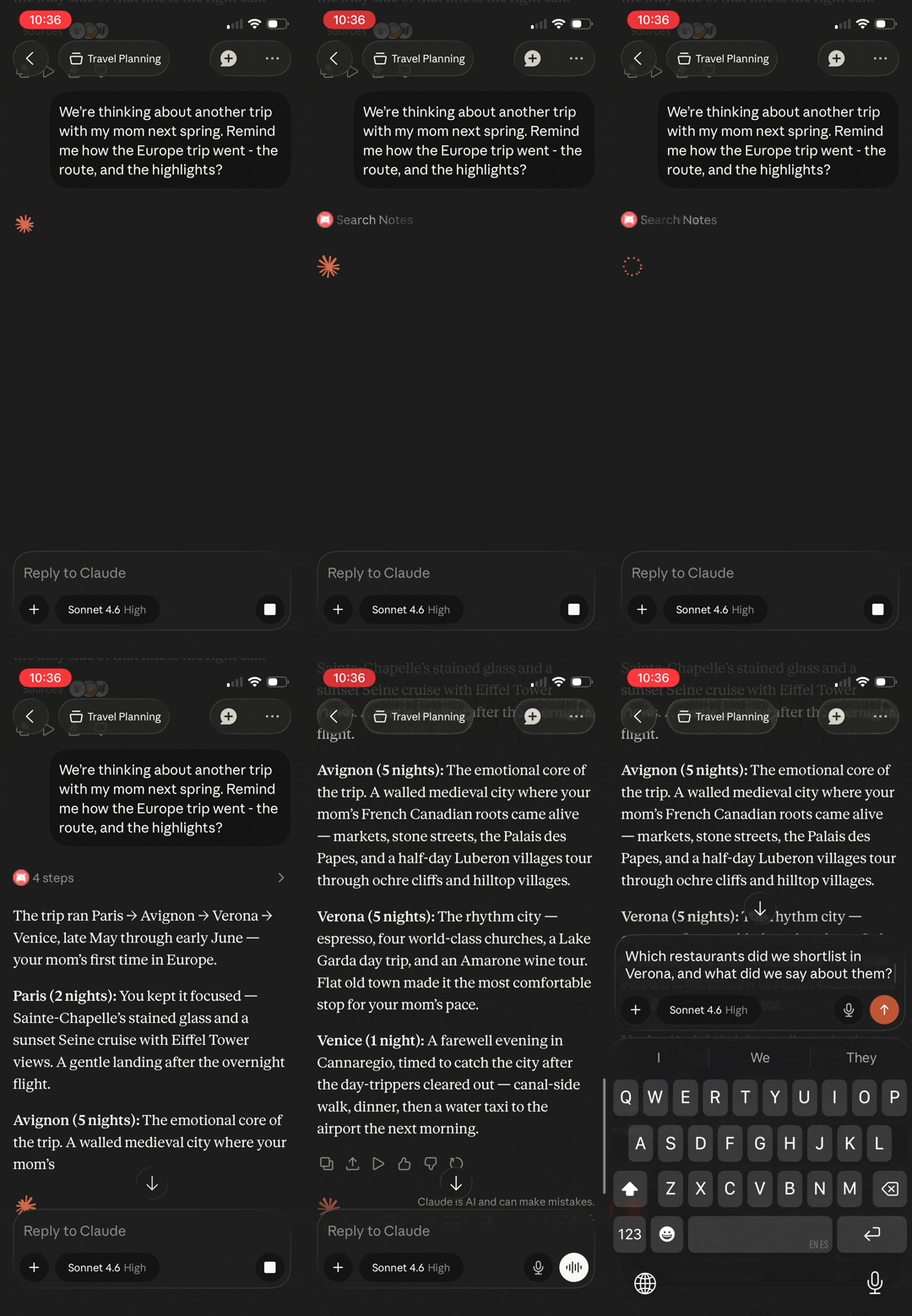 |
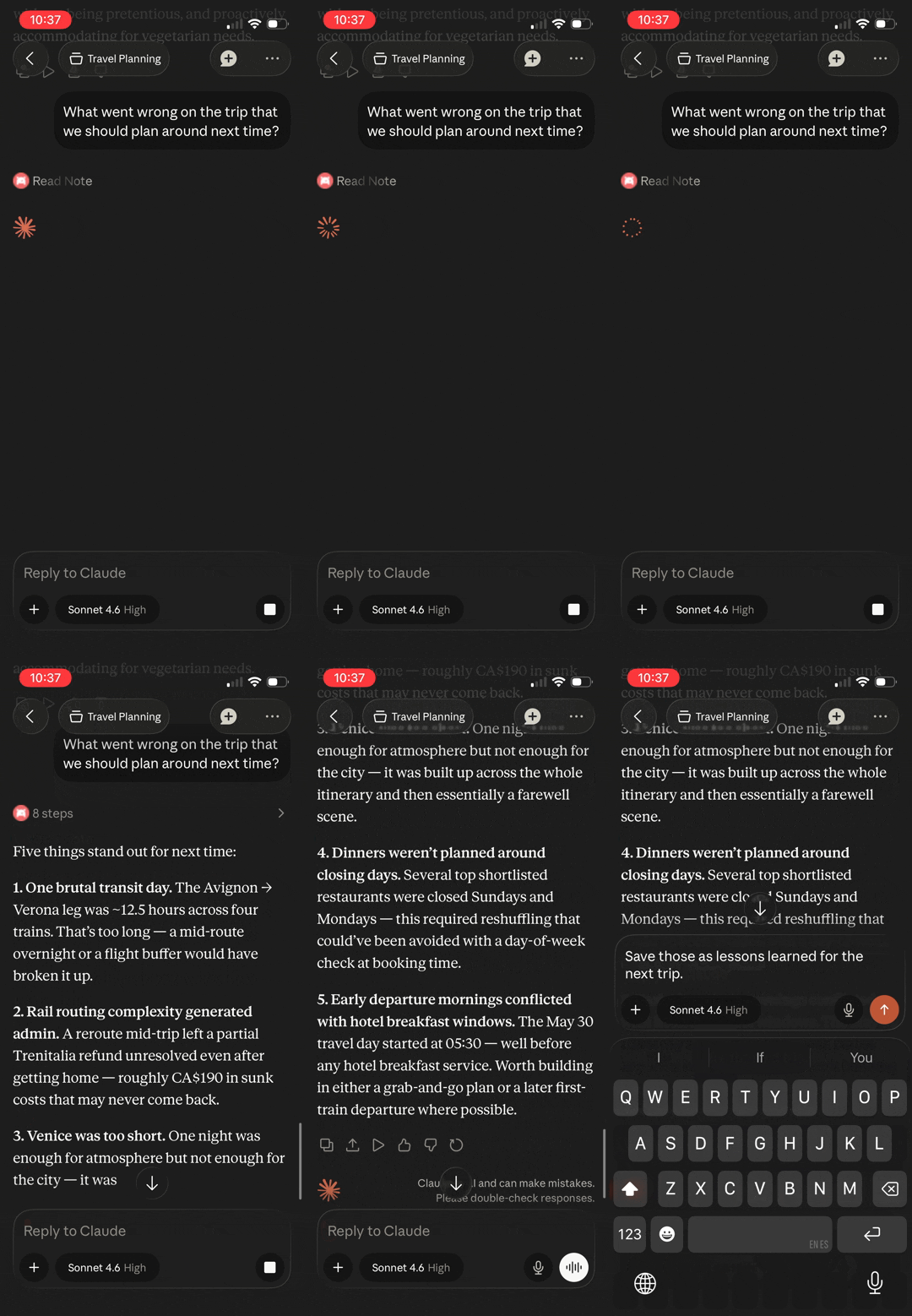 |
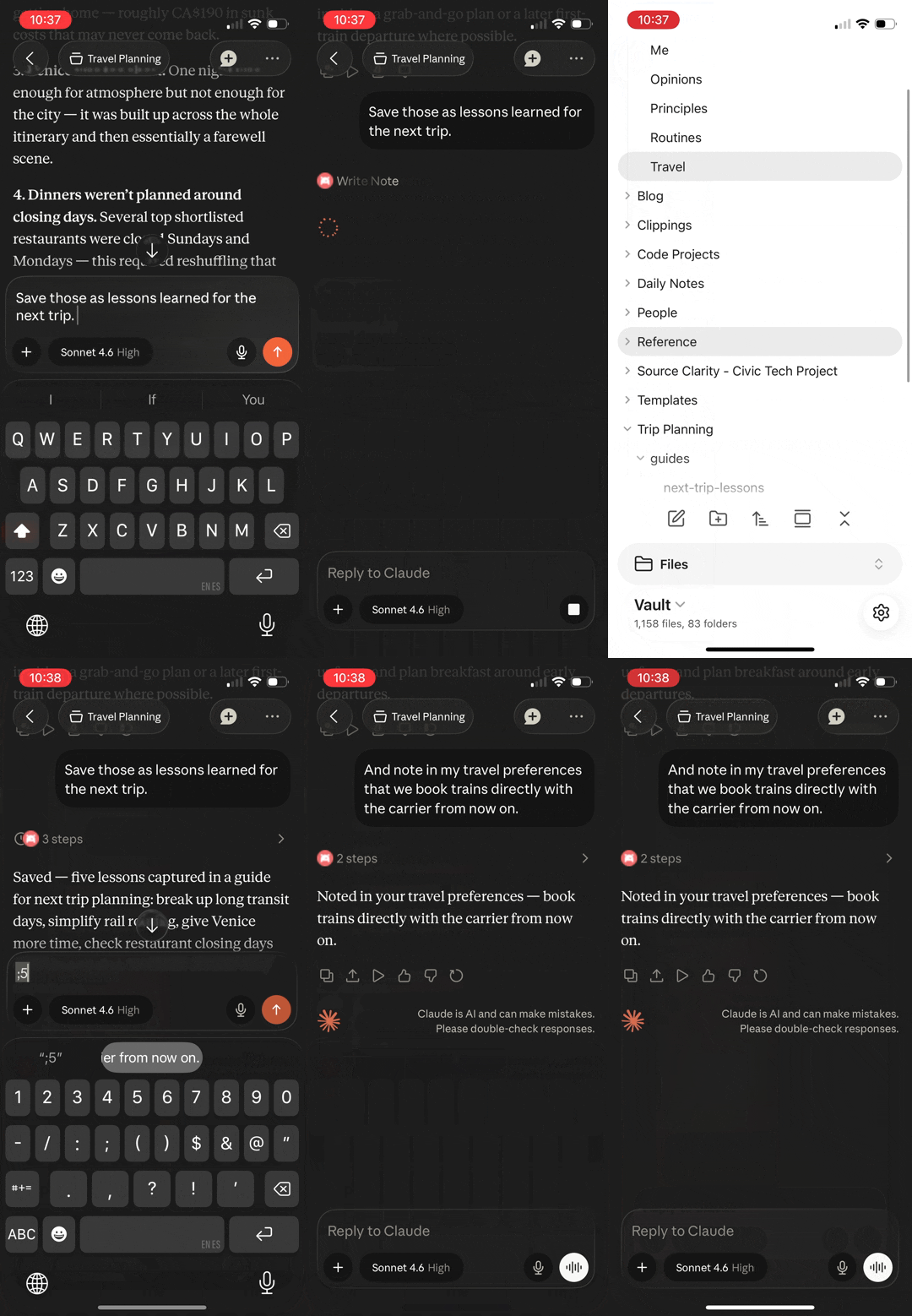 |
- Remote access — works from your phone, a remote server, or any MCP client via OAuth 2.1. One click on Render or Railway gets you there with no server to manage; a VPS works too.
- Plugin-free — Obsidian doesn't need to be running. The server works directly with
.mdfiles on disk. Headless sync keeps the vault current. - Hybrid search — FTS5 keyword matching + vector semantic similarity via RRF fusion, refined by cross-encoder reranking for intent-heavy queries. Keywords stay precise on exact terms and jargon; vectors find notes even when your words differ from the vault's.
- Structured memory — dated, append-only entries accumulate into a personal knowledge layer, auto-initialized for AI personalization. Topic recall answers "what do I think about X?" with the current take and the dated history behind it — evolution included.
- Tasks — Kanban-aware task queries and updates: triage by status, dates, or priority, then complete, reprioritize, or move tasks between lanes in one call. Parses both Tasks plugin emoji and Dataview inline-field formats.
- Link graph — backlinks, outgoing links, and orphan detection across the vault
- Files — read the vault's non-markdown files too: images arrive as actual images (shrunk to fit when needed), PDFs as structured text or rendered pages, canvases as readable outlines, data files as text
- Obsidian-native — understands frontmatter, wikilinks, tags, headings, and daily notes
- Guided workflows — built-in prompts for vault health, memory review, and daily reconciliation — assembled from live vault data each time
Tested across a 15-day trip through Europe. 30+ sessions from a phone, 216 tool calls, zero laptop access needed. Writes in one session were immediately available in the next, across cities and days.
Quick Start
Local (2 minutes — Docker + your vault folder)
Prerequisites: Docker (or a Docker-compatible runtime, e.g. OrbStack, Colima, Podman), Node.js >= 22.12 (only for the CLI — the server itself runs in Docker), and an Obsidian vault (or any folder of .md files).
npx vault-cortex@latest init
That's it — the CLI asks for your vault path, generates the auth token and config files, starts the server, and prints the connection details for your MCP client (CLI reference →).
Set up with the CLI? It manages the server from here on — configure, upgrade, start, restart, logs, down (CLI reference →).
Set up with Compose? Stick with Compose for updates too (docker compose pull && docker compose up -d) — the CLI and Compose manage the container independently.
Manual setup (no Node.js needed)
# 1. Get the quickstart files
curl -O https://raw.githubusercontent.com/aliasunder/vault-cortex/main/deploy/local/docker-compose.yml
curl -O https://raw.githubusercontent.com/aliasunder/vault-cortex/main/deploy/local/.env.example

# 2. Configure
cp .env.example .env
# Edit .env — set MCP_AUTH_TOKEN (openssl rand -hex 32) and VAULT_PATH

# 3. Start
docker compose up
Full local guide → (includes Windows setup)
Remote (access from anywhere)
Your vault on a server, kept current by Obsidian Sync, reachable from your phone, claude.ai, or any MCP client. The one-click options ask for your vault name and timezone (plus the vault password if your vault is encrypted), then handle HTTPS, restarts, a generated MCP token, and persistent storage. Once deployed, a setup page walks you through signing in to Obsidian Sync in your browser. On your own server the CLI asks for the public URL and vault name, captures the Sync token for you, and generates the MCP token; HTTPS is yours to set up.
| Railway | Render | Self-hosted | |
|---|---|---|---|
 |  | CLI setup → | |
| Account | Railway on the Hobby plan or higher — the 5 GB volume is included | Render with a card on file | A VPS with Docker |
| Cost | Usage-metered: typically $20–30 USD/mo for a personal vault — a little under Render for a quiet vault, a little over for a busy one | Flat: about $26 USD/mo for the Standard instance (2 GB) and 5 GB disk, billed by the second | Whatever your VPS costs |
| Pick it if | You want the easier start — the template lands you in a configured project | A predictable bill matters more than setup polish | You already run a server or want full control |
| Guide | Railway guide → | Render guide → | Remote guide → |
All three need an Obsidian Sync subscription. Whichever you pick, the server is replaceable and your vault isn't — it stays in plain Markdown in Obsidian Sync and on your devices; the container only holds a copy.
The setup page. Deploy without an Obsidian Sync token and the server starts in setup mode: opening its URL in a browser lands on a sign-in page at /setup. Enter your Obsidian account credentials once (two-factor supported) — you sign in with Obsidian directly; the server keeps only the Sync token from that sign-in, restarts, and downloads your vault.
Self-hosted: your own VPS
The vault-cortex CLI sets up the same container on any Linux box you run — you manage the server, the image, and updates. You need Node.js >= 22.12 for the CLI itself; the server runs in Docker.
# On your VPS:
npx vault-cortex@latest init --mode remote
That's it — the CLI walks through the public URL, Obsidian Sync token (it can run get-sync-token for you), vault name, the vault password for an encrypted vault, and auth config, then starts the server (CLI reference →).
Set up with the CLI? It manages the server from here on — configure, upgrade, start, restart, logs, down (CLI reference →).
Set up with Compose? Stick with Compose for updates too (docker compose pull && docker compose up -d) — the CLI and Compose manage the container independently.
Manual setup (no Node.js needed)
# On your VPS:
mkdir -p /opt/vault-cortex && cd /opt/vault-cortex
curl -O https://raw.githubusercontent.com/aliasunder/vault-cortex/main/deploy/remote/docker-compose.yml
curl -O https://raw.githubusercontent.com/aliasunder/vault-cortex/main/deploy/remote/.env.example
cp .env.example .env
# Edit .env — set MCP_AUTH_TOKEN, PUBLIC_URL, VAULT_NAME (OBSIDIAN_AUTH_TOKEN optional — /setup handles it)
docker compose up -d
Left OBSIDIAN_AUTH_TOKEN empty? Once the container is up, open
<PUBLIC_URL>/setup in your browser and sign in — set up
HTTPS first, since the page sends your
Obsidian password to the server
(full walkthrough →).
Connect your MCP client
| Setup | Server URL |
|---|---|
| Local | http://localhost:8000/mcp |
| Remote (one-click) | https://<host>/mcp — <host> is the domain Render or Railway shows on the service page |
| Remote (self-hosted) | <PUBLIC_URL>/mcp |
Add the server URL in any MCP client — Claude Code, Claude Desktop, Cursor, OpenCode, or any other. OAuth clients open a consent page in your browser — approve with your token, and the client handles token renewal from then on. Clients without OAuth (MCP Inspector, scripts) send the token directly as an Authorization: Bearer header.
Claude Code:
claude mcp add --scope user --transport http vault-cortex http://localhost:8000/mcp # local (or <PUBLIC_URL>/mcp)
--scope user registers the server for every project; omit it to scope it to the current directory only.
Claude Desktop (localhost requires mcp-remote bridge)
The "Add custom connector" dialog only accepts https URLs. With an https PUBLIC_URL, add it directly in the connector dialog; for a localhost server, register it in claude_desktop_config.json through the mcp-remote stdio bridge instead:
{
  "mcpServers": {
    "vault-cortex": {
      "command": "npx",
      "args": [
        "-y",
        "mcp-remote",
        "http://localhost:8000/mcp",
        "--header",
        "Authorization: Bearer <your MCP_AUTH_TOKEN>"
      ]
    }
  }
}
claude.ai (web and mobile) connects to the remote setup only — its connectors are fetched server-side and can never reach localhost.
"Remote MCP server" refers to the connection type (HTTP) — in the local setup the server still runs entirely on your machine.
See Authentication for both methods and token lifetimes.
How It Works
Everything runs in one Docker container, working directly with the .md files on disk:
- Your vault stays the source of truth — the server reads and writes the same plain Markdown files your Obsidian apps do.
- Search is derived data — a file watcher keeps the index (keywords + vectors) current as notes change, and it can be rebuilt from your notes at any time.
- The remote image adds a sync loop — a bundled Obsidian Sync service keeps the container's vault current with every device: edit a note on your phone and it's searchable moments later; an agent writes a note and it shows up in Obsidian.
graph LR
    subgraph container ["One Docker container"]
        Sync["sync service<br/>(remote image)"]
        Vault[("/vault<br/>.md files — source of truth")]
        Index[("search index<br/>keywords + vectors")]
        Server["MCP server"]
        Sync <-->|read/write| Vault
        Vault -->|file watcher| Index
        Server <-->|read/write| Vault
        Server -->|query| Index
    end
    Obsidian["Your Obsidian apps<br/>(phone, laptop)"] <-->|Obsidian Sync| Sync
    Client["Any MCP client<br/>(Claude, Cursor, claude.ai)"] -->|OAuth 2.1 / Bearer| Server
See ARCHITECTURE.md for the full design, auth flow diagrams, and component breakdown.
Hybrid Search
Keyword search alone fails when your vocabulary doesn't match the vault's — "aspirations" won't find a note about "targets", "coworkers" won't surface your "references" file. In testing against a real vault, 30% of natural-language queries returned zero or tangential results with keywords alone. Hybrid search eliminated those misses — vectors bridge the vocabulary gap, and the reranker rescues intent-heavy queries where neither signal is strong on its own.
Hybrid search combines three ranking signals via Reciprocal Rank Fusion:
- Keywords (FTS5) stay precise on exact terms, jargon, and property values
- Vectors (sqlite-vec) bridge the vocabulary gap by matching on meaning
- Reranker (cross-encoder) refines ordering by scoring each query-document pair jointly — rescues intent-heavy queries where keywords and vectors both miss
All models run locally (~45MB total, no external API). Set EMBEDDING_ENABLED=false for keyword-only search, or RERANK_MODE=none to skip reranking for lower latency.
See ARCHITECTURE.md → Hybrid Search for model details, blend weights, and the full pipeline breakdown.
Memory
A memory layer that only grows is only useful if agents can retrieve the right entries without dumping everything into context. Once you have hundreds of dated entries across multiple files — preferences, principles, communication style, ongoing commitments — reading whole files wastes context on irrelevant material and buries the signal. The memory system is designed for targeted retrieval: agents accumulate knowledge over time and recall exactly what's relevant to the task at hand.
The layer is a folder of plain Markdown files (default: About Me/) holding dated entries under topic headings — auto-created with starter templates on first run, grown by agents through vault_update_memory. Three properties make it work:
- Append-only — entries are never overwritten; corrections arrive as new dated entries. The layer becomes a personal knowledge base that captures your current state and the evolution behind it
- Topic recall —
vault_memory_recallretrieves every relevant entry across all memory files at once, keyword- and semantically-matched, oldest first. Ask "what do I think about X?" and get the current take plus the dated history of how it developed — no need to read entire files or guess which file holds what - Grows without degrading — capping results (
limit) drops the least-relevant entries, never a slice of the timeline. A memory layer with 500 entries serves a targeted query as well as one with 50
Files that describe what's current rather than what has been true (routines, active commitments) can declare entry-policy: living in frontmatter — their expired entries are prunable rather than preserved, keeping the current-state picture accurate.
The whole layer is optional — set MEMORY_ENABLED=false to hide the memory tools and skip the folder auto-creation entirely.
See ARCHITECTURE.md → Memory for the recall pipeline, indexing model, auto-initialization, and opt-out behavior, and templates/memory for the file format, entry-policy convention, and starter templates.
Tasks
Task metadata lives in plain markdown — scattered across files, encoded in emoji signifiers or inline fields, organized under Kanban headings. An agent answering "what's overdue?" would need to parse every file and understand your chosen format; completing a task on a Kanban board means knowing the board's lane structure, the date syntax, and which heading is the done lane.
The task layer handles this so agents don't have to:
- Find — filter by status, six date fields (due, scheduled, start, created, done, cancelled), priority, folder, or Kanban lane. Each result carries its note path, line number, and nearest heading when the task sits under one (the lane on a Kanban board) — no follow-up reads needed to locate a task
- Create — add a correctly-formatted task in one call: description, priority, dates, block_id, and checklist sub-items, placed under a heading or nested under a parent task
- Update — complete, reprioritize, edit the text, set or clear dates, add checklist items, and move tasks between headings in a single call. Marking a task done auto-detects the done lane and stamps the completion date; reversing it removes the date
- Both formats — whichever format you use, Tasks plugin emoji signifiers or Dataview inline fields, the server reads both and writes in the format your Tasks plugin is configured for
See ARCHITECTURE.md → Tasks for the indexing model, date cascade sorting, and Kanban lane detection.
Files
Your notes embed screenshots, reference architecture diagrams, and link out to canvases and data files — but to an agent reading markdown, ![[diagram.png]] is just text. vault-cortex treats files as part of the vault rather than clutter around it — linked, sized, and readable, each in the form an agent can actually use:
- Images — the image itself, not the filename. Screenshots and diagrams are downscaled and recompressed server-side when they exceed what MCP clients accept, so even a phone session can look at a 5MB architecture diagram
- Canvases — a Canvas board arrives as a readable outline: its groups, each card's content in reading order, and the connections between them. Canvas content is full-text searchable, and file references on the board appear in the link graph — backlinks and outgoing links work just like note-to-note links. The exact JSON source is one flag away when full fidelity matters
- PDFs — text is extracted with heading hierarchy, code blocks, and hyperlinks preserved; PDF content is full-text searchable alongside your notes. Set
raw: trueto render pages as images instead, showing layout, diagrams, and tables that text extraction can't preserve — scanned and image-only PDFs work in this mode - Text and data files — TXT, SVG, JSON, XML, CSV, YAML, logs, and Bases files return exactly as written; the first 100 KB of content is full-text searchable. Big data files and logs can be read a line range at a time, with each page reporting where you are and how much file remains
- Browse — list any visible folder's files with per-extension counts and file sizes; files a note links to report their size in the link graph too
Set FILE_TOOLS_ENABLED=false to hide the file tools — useful when your remote vault syncs without attachments.
See ARCHITECTURE.md → Files for the image pipeline and dispatch model.
Tools
| Category | Tool | Description |
|---|---|---|
| Vault CRUD | vault_read_note | Read a note — full body, properties, outline, or a section |
vault_write_note | Create a note (fails if it already exists; set overwrite to replace) | |
vault_patch_note | Heading-targeted edit (append, prepend, replace with include_children guard, insert) | |
vault_replace_in_note | Find-and-replace text in a note (first match or replace_all_occurrences) | |
vault_delete_span | Delete a block of lines by short anchors, no full re-quote | |
vault_replace_span | Replace a block of lines by short anchors with new content | |
vault_insert_at_anchor | Insert content before or after a line identified by a short anchor | |
vault_list_notes | List notes with optional glob/folder filter | |
vault_delete_note | Delete a note, honoring the vault's trash setting (protected paths enforced) | |
vault_move_note | Move or rename a note, rewriting links across the vault | |
| Search | vault_search | Hybrid search with tag/folder/property/date filters |
vault_search_by_tag | Find notes by tag (exact or prefix match) | |
vault_search_by_folder | Browse notes in a folder with metadata | |
vault_recent_notes | Recently modified or created notes | |
vault_list_tags | All tags with usage counts | |
| Tasks | vault_list_tasks | Vault-wide task index with sub-task depth — Kanban-aware, date/priority/heading filters |
vault_create_task | Create a correctly-formatted task — dates, priority, sub-tasks, block_id in one call | |
vault_update_task | Edit description, dates, status, priority, heading, sub-tasks, block_id in one call | |
| Memory | vault_get_memory | Read structured memory (file, section, or all) |
vault_update_memory | Append a dated entry to a memory section | |
vault_delete_memory | Remove a specific memory entry by date | |
vault_list_memory_files | Discover memory files, their sections, and each file's entry policy | |
vault_memory_recall | Entry-granular hybrid recall of a topic across memory files, oldest-first | |
| Properties | vault_list_property_keys | All property keys with sample values |
vault_list_property_values | Distinct values for a property key | |
vault_search_by_property | Find notes by property key-value | |
vault_update_properties | Add or update properties without touching the body | |
| Links | vault_get_backlinks | Notes linking to a given path |
vault_get_outgoing_links | Links from a given note | |
vault_find_orphans | Notes with no incoming links | |
| Files | vault_read_file | Read a non-markdown file — images delivered as images, canvases as readable outlines |
vault_list_files | Browse the vault's non-markdown files with sizes and per-extension counts | |
| Daily Notes | vault_get_daily_note | Today's (or any date's) daily note |
Prompts
Tools are model-driven — the assistant calls them. Prompts are workflows you trigger. Each one queries the search index, link graph, and memory layer at invocation time, then assembles the results with guided instructions — so the session starts grounded in your vault's actual state, not assumptions.
| Prompt | Arguments | What it does |
|---|---|---|
vault-orientation | — | Surveys vault stats, folder distribution, property adoption rates (flags low adoption), orphans, broken link count, tags, recent notes, and the memory layer — with contextual tool suggestions |
memory-review | file?, max_chars? | Structural overview (scope callouts, section entry counts) + dated content as a timeline. Guided reflection: evolution narrative, scope-fit, backfill gaps, and coverage analysis — append-only by default, pruning proposed only for entry-policy: living files. Hidden when MEMORY_ENABLED=false, READONLY_MODE=true, or DISABLED_TOOLS includes vault_update_memory. |
daily-review | date?, max_chars? | Reconciles a day — daily note, vault-wide task status (due/overdue, scheduled), modified notes, outgoing links (broken-link detection), and backlinks — surfaces what happened, what's open, and what needs follow-up |
Prompts adapt to your configuration (MEMORY_DIR, daily-notes settings) and work for any vault out of the box. Pass max_chars to cap embedded content if your client has payload limits.
Client support: Prompts work in Claude Desktop (Chat and Cowork — via the + menu under your connector), Claude Code (slash commands), and OpenCode. Support in other clients (Cursor, Windsurf) varies — see the MCP clients matrix for the latest.
Properties
Vault Cortex indexes every property in your notes, but five get promoted treatment — dedicated columns for fast filtering, and top-level fields in every search and discovery result:
| Property | What you can do |
|---|---|
title | Display name in search results; falls back to the filename when missing |
tags | Search and filter by tag, including parent-child hierarchies (project matches project/vault-cortex) |
type | Filter by note type — meeting, person, session-log, or any value your vault uses |
created | Sort by creation date and see when each note was created alongside every search result |
related | Filter for notes that cross-reference a specific link — surfaces connections invisible without a graph query |
All other properties are still fully queryable — use vault_search with filters.properties for combined text + metadata queries, or vault_search_by_property for metadata-only lookups. vault_list_property_keys and vault_list_property_values discover what properties exist across your vault.
These are conventions, not requirements — Vault Cortex works with any property schema. Promoted properties just give you richer filtering and cleaner results out of the box.
Leading callouts get the same treatment. When a note's first body content is an Obsidian callout (> [!type]) — either right after frontmatter or right after the title heading — it's indexed and surfaced alongside every discovery result (on vault_search, ask for it with include_leading_callout). This makes notes self-describing: an agent scanning results can see what each note is for before deciding which to read. The memory templates use > [!info] Scope of this file callouts for this, and any note in your vault can use the same pattern.
Configuration
All settings are environment variables with sensible defaults. Remote deployments also forward Obsidian Sync's own settings — DEVICE_NAME, SYNC_MODE, CONFLICT_STRATEGY, SYNC_CONFIGS, SYNC_EXCLUDED_FOLDERS, SYNC_FILE_TYPES — documented in the remote guide's configuration table.
| Variable | Required? | Default | Description |
|---|---|---|---|
MCP_AUTH_TOKEN | Yes | — | Bearer token for authentication (also the JWT signing key) |
VAULT_PATH | Local only | — | Host path to your vault (bind mount source; remote uses a named volume). Must not contain *, ?, or [ — rejected at startup. |
PUBLIC_URL | Remote only | — | Public URL for OAuth discovery metadata. Filled in automatically on Render and Railway (from RENDER_EXTERNAL_URL or RAILWAY_PUBLIC_DOMAIN) when left unset |
OBSIDIAN_AUTH_TOKEN | — | — | Obsidian Sync auth token. Leave empty to sign in through the /setup page after deploy; or the CLI's get-sync-token captures it for you |
VAULT_NAME | Remote only | — | Exact name of your Obsidian vault (case-sensitive) |
VAULT_PASSWORD | Remote only | — | End-to-end encryption password, if your vault has one. Leave empty otherwise. |
STORAGE_ROOT | — | — | One directory for everything that must persist — the vault, the search index, and Obsidian Sync state — for container hosting platforms that allow a single persistent volume (Railway, Render). Mount the volume there and set this to the same path. Must not contain *, ?, or [ — rejected at startup. |
EMBEDDING_ENABLED | — | true | Set false to disable the embedding pipeline — skips model download, vector tables, embedding passes, and hybrid search. Search falls back to FTS5 keyword matching. |
RERANK_MODE | — | blended | Cross-encoder reranking mode: blended applies position-aware score blending after RRF fusion (~200ms added latency), none skips reranking. Only takes effect when EMBEDDING_ENABLED is true. |
MEMORY_ENABLED | — | true | Set false to fully disable the memory layer — hides memory tools, skips bootstrap, omits memory from server metadata. MEMORY_DIR is ignored when false. |
FILE_TOOLS_ENABLED | — | true | Set false to hide file tools (vault_read_file, vault_list_files) — useful for remote deployments where Obsidian Sync has attachment syncing disabled. |
READONLY_MODE | — | false | Set true to hide every tool that changes the vault and skip memory folder auto-creation — connected clients can read and search but never edit. |
DISABLED_TOOLS | — | — | Hide individual tools by name, comma-separated (e.g. vault_delete_note,vault_move_note). Names match the Name column in the tools table. Subtractive only — it cannot re-enable a tool another setting hides. An unknown tool name stops the server at startup, so typos surface immediately. |
MEMORY_DIR | — | About Me | Vault folder for structured memory files |
PROTECTED_PATHS | — | MEMORY_DIR, daily notes folder | Folders that vault_delete_note and vault_move_note refuse to touch. The default daily notes folder is read from DAILY_NOTES_FOLDER or .obsidian/daily-notes.json (default Daily Notes). Overrides the default entirely when set. |
ORPHAN_EXCLUDE_FOLDERS | — | DAILY_NOTES_FOLDER, Templates, MEMORY_DIR | Folders excluded from orphan detection |
DAILY_NOTES_FOLDER | — | from vault config | Sets the folder your daily notes live in. When unset, read from the vault's .obsidian/daily-notes.json, falling back to Daily Notes. See Daily notes. |
DAILY_NOTES_FORMAT | — | from vault config | Sets the daily note filename format — same tokens as Obsidian's daily note date format setting. When unset, read from the vault's .obsidian/daily-notes.json, falling back to YYYY-MM-DD. See Daily notes. |
TZ | — | UTC | IANA timezone for timestamps and daily note resolution |
SERVICE_DOCUMENTATION_URL | — | GitHub repo URL | URL returned in OAuth discovery metadata |
LOG_LEVEL | — | info | Logging verbosity: debug, info, warn, error |
LOG_DIR | — | /data/logs (remote), $STORAGE_ROOT/data/logs (single-volume), none (local) | Directory for log files that survive container re-creation. The container's own log (what docker logs shows) is always written, but Docker discards it whenever the container is recreated — on image updates or config changes. Date-stamped files under LOG_DIR live on the data volume and survive. none keeps only the container log. |
LOG_RETENTION_DAYS | — | 90 | Days to keep log files before automatic cleanup on startup; only applies when LOG_DIR is a path |
WINDOWS_MODE | — | false | On Windows? Set true. Switches the file watcher to polling and note moves to rename-based writes so a vault on a C: drive works through Docker Desktop. Safe to leave on for any Windows setup; unneeded on macOS/Linux/WSL2. |
MAX_FILE_BYTES | — | 52428800 (50 MiB) | Maximum file size vault_read_file will read (in bytes). Files exceeding this are rejected before reading. Raise for vaults with very large individual files. |
MAX_IMAGE_OUTPUT_BYTES | — | 49152 (48 KiB) | Byte budget for images delivered by vault_read_file, in binary bytes before base64 encoding. Images exceeding this are downscaled and recompressed to fit. Sized for the tightest mainstream MCP client cap; raise for clients that accept larger responses. |
MAX_PDF_RENDER_PAGES | — | 5 | Maximum PDF pages to render as images when raw: true is set on vault_read_file. The per-page byte budget is MAX_IMAGE_OUTPUT_BYTES divided evenly across the rendered pages — fewer pages means higher quality each. |
TRASH_RETENTION_DAYS | Local only | 30 | Days a note deleted under Obsidian's default "Move to system trash" setting stays in .trash/ before the server cleans it up. Set none to keep those notes forever. Only notes the server itself moved there are cleaned up. With Obsidian Sync, deletes are permanent on the server and recoverable from Sync's version history. |
TRUST_PROXY_HOPS | — | 0 | Number of trusted reverse-proxy hops used to derive the client IP from X-Forwarded-For (OAuth rate limiting, request logs). Set 1 when exactly one proxy you control sits in front of the server (Caddy, nginx, Cloudflare Tunnel, API Gateway). With 0, injected forwarding headers are ignored. |
TRUST_FORWARDED_HOPS | — | 0 | How many trailing for= entries in the RFC 7239 Forwarded header belong to proxies you control. 0 ignores the header; 1 when the proxy in front writes it (e.g. AWS API Gateway); 2 when a CDN fronts that proxy and is the only way to reach it. |
- Smart defaults —
MEMORY_DIRand the daily notes folder feed the defaults forPROTECTED_PATHSandORPHAN_EXCLUDE_FOLDERS. Set one of those explicitly only when you want a fully custom list: the value replaces the whole default, daily notes folder included.PROTECTED_PATHSreads the daily notes folder fromDAILY_NOTES_FOLDERor.obsidian/daily-notes.json(defaultDaily Notes).ORPHAN_EXCLUDE_FOLDERStakes it fromDAILY_NOTES_FOLDER, elseDaily Notes— it doesn't readdaily-notes.json.
MEMORY_ENABLED=falsefully disables the memory layer — memory tools are hidden and the memory folder is not auto-created.- **`FIL
Installation
Source-derived launch command. Check the maintainer’s required arguments and credentials before running:
docker run -i --rm ghcr.io/aliasunder/vault-cortex:0.54.10Set up in your AI client
Merge this template into ~/Library/Application Support/Claude/claude_desktop_config.json. Keep existing servers. Add any arguments, credentials, and permissions required by the maintainer; this template has not been install-tested.
{
  "mcpServers": {
    "io-github-aliasunder-vault-cortex": {
      "command": "docker",
      "args": [
        "run",
        "-i",
        "--rm",
        "ghcr.io/aliasunder/vault-cortex:0.54.10"
      ]
    }
  }
}
Restart Claude Desktop completely for changes to take effect. Confirm the server appears connected in the client’s tool list, then try a read-only example from its documentation.
Claude Desktop setup referencePackage
ghcr.io/aliasunder/vault-cortex:0.54.10dockerCompatible MCP Clients
Vault Cortex works with any MCP-compatible client. Copy the config snippet from the Configuration section above and add it to the file shown for your client, then restart the application.
- Claude Desktop
~/Library/Application Support/Claude/claude_desktop_config.jsonRestart Claude Desktop completely for changes to take effect. - Cursor
~/.cursor/mcp.jsonRestart Cursor for changes to take effect. - VS Code
.vscode/mcp.jsonReload VS Code window for changes to take effect. - Windsurf
~/.codeium/windsurf/mcp_config.jsonRestart Windsurf for changes to take effect. - Claude Code
.mcp.jsonSave at the project root, then start Claude Code in that project and review the MCP server approval prompt. Keep real credentials out of shared files.