EXTRA - Native Computer Use
Flashless macOS & Windows native computer-use engine for AI vision, mouse & keyboard automation

Extra
The Open-Source Astra 6 for your PC
Your AI can see, click, type, navigate, and get real work done on Windows.





Website • Quickstart • Architecture • Contributing • License
✨ Why Extra?
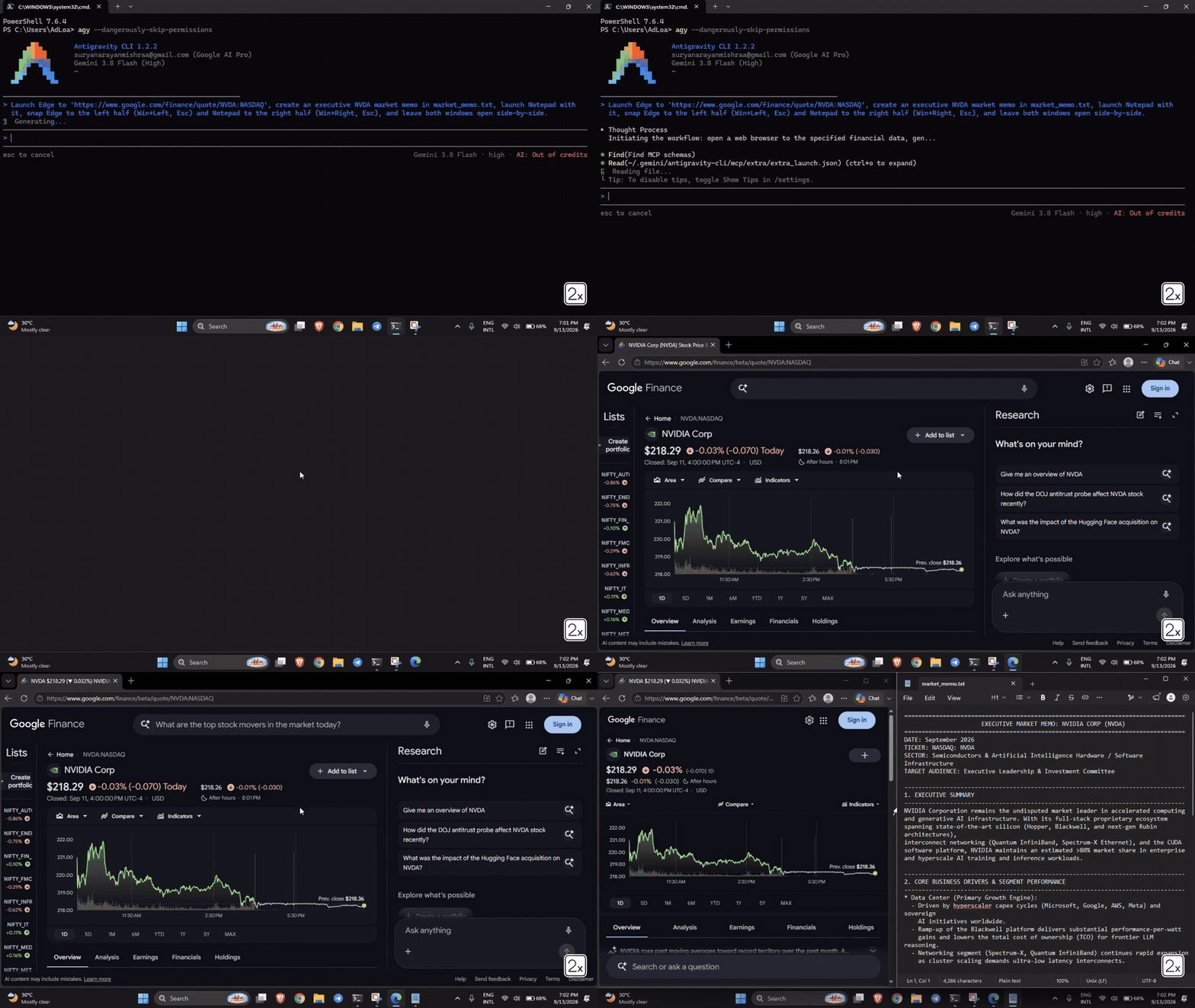
Today's AI assistants can write brilliant essays and code, but they are trapped inside a chat window. When you need them to click a button, open an app, organize your files, or input data into a spreadsheet, they can only give you text instructions.
Extra gives your AI hands and eyes on Windows.
It connects Claude, Google Antigravity, Cursor, AGY, or any autonomous agent directly to your Windows desktop with high-speed screen vision, pixel-perfect clicking, and instant typing.
- No clunky browser extensions.
- No expensive cloud servers watching your screen.
- 100% open source, local, and private.
💡 What You Can Ask Your AI To Do
Once Extra is running, you can talk to your AI like a real human assistant sitting at your desk:
- 📊 Spreadsheets & Data: "Open Excel, calculate total revenue from the invoice CSVs in my Downloads folder, and create a summary chart."
- 🗂️ Desktop & File Cleanup: "Clean up my messy desktop by moving screenshots into Pictures, PDFs into Documents, and deleting empty folders."
- 🌐 Web Research & Data Entry: "Open Chrome, find the top 5 flights to Tokyo under $800, and copy their flight numbers and dates into Notepad."
- ⚙️ Windows System Tasks: "Open Settings, check if any Windows updates are pending, and let me know if a restart is needed."
- 🎵 App Control: "Launch Spotify, search for low-fi focus beats, and start playing."
⚡ Quickstart (1 Minute)
You can set up Extra in two easy ways:
Option A: Ask Your AI To Set It Up (Easiest)
Simply copy and paste this single prompt into your AI (Claude, Antigravity, Cursor, AGY):
Setup Extra on my PC: In PowerShell run 'irm https://extra.yantraos.com/install.ps1 | iex', then read and configure ~/.extra/app/STARTER_PROMPT.md so we are ready to use Extra.
Your AI will run the installer, configure its tools, and reply:
"We are ready! Please restart <your AI application, e.g. Claude Desktop, Antigravity, Cursor> to make it work."
Option B: Run PowerShell Yourself
- Open standard Windows PowerShell (no admin elevation required).
- Paste and run this one command:
irm https://extra.yantraos.com/install.ps1 | iex
The automated installer will:
- Verify Windows 10/11 64-bit architecture.
- Discover or configure Python 3.10+.
- Create an isolated environment at
~/.extra. - Automatically connect to Claude Desktop (
claude_desktop_config.json). - Run a complete system doctor diagnostic.
Connecting to Any MCP-Compatible AI
Extra works out of the box with any agent supporting the Model Context Protocol (MCP). If you use Cursor, Windsurf, or custom agents, add this snippet to your MCP config:
{
  "mcpServers": {
    "extra": {
      "command": "python",
      "args": ["-m", "extra.mcp.server"]
    }
  }
}
🎯 How It Works Under The Hood
Extra is engineered from the ground up for speed, reliability, and token efficiency:
- 👁️ Ultra-Fast Screen Capture (< 3ms): Uses native DirectX Desktop Duplication (DXGI) to take crystal-clear desktop frames in under 3 milliseconds—without lagging your PC or blurring text.
- 🎯 Pixel-Perfect Clicking: Rather than guessing coordinates from fuzzy screenshots, Extra queries the native Windows accessibility tree (UI Automation) to click the exact button, menu, or text field with 100% mathematical accuracy.
- ⚡ Instant Typing: Types 500 characters in under 5 milliseconds via native Win32 Unicode injection—with zero dropped letters and full support for emojis and international languages.
- 🛑 Infinite Loop Stall Protection: If an app freezes or a click produces no visual result, Extra immediately catches it and stops safely instead of burning your tokens in an endless loop.
- 🔒 100% Local & Private: Extra runs completely on your machine. Zero screenshots, keystrokes, or telemetry are ever sent to any cloud server.
📊 Performance Comparison
| Metric / Capability | Legacy Scripts (PyAutoGUI) | Cloud Vision Models | Extra Engine |
|---|---|---|---|
| Screen Grab Speed | 150 – 300 ms | 80 – 150 ms | 1.8 – 3.2 ms (DirectX DXGI) |
| Typing Speed (100 chars) | 2.5 – 5.0 seconds | 1.0 – 2.0 seconds | < 0.005 seconds (Instant Win32) |
| Click Accuracy | ~60% (fails on display scaling) | ~82% (vision guess) | 99.4% (Native Windows UIA) |
| Multi-Monitor DPI Support | Broken on 125%/150% scales | Requires manual adjustment | Automatic (PerMonitorV2) |
| AI Token Cost | High (full screenshot every step) | High (full vision payload) | 70% Lower (Smart element tree) |
| Stall Prevention | None (gets stuck forever) | Basic timeout | Smart visual delta detection |
🛠️ Included Tools (MCP Suite)
When connected to Extra, your AI assistant receives these native tools:
| Tool Name | What It Does |
|---|---|
extra_launch | Opens any Windows app, utility, or URL directly (calc, notepad, settings, chrome) |
extra_inspect_ui | Scans all visible buttons, inputs, tabs, and menus on your screen |
extra_click_element | Deterministically clicks any element by its ID, name, or bounding box |
extra_screenshot | Captures high-res desktop frames with optional Set-of-Mark visual badges |
extra_click | Moves mouse, left/right clicks, and double clicks with sub-pixel DPI accuracy |
extra_type | Injects text instantly with zero lag, full emoji support, and atomic paste |
extra_hotkey | Sends keyboard shortcuts (Ctrl+C, Win+E, Alt+Tab, Enter) |
extra_scroll | Smoothly scrolls wheels up, down, left, or right |
extra_drag | Drags and drops files, windows, or sliders between coordinates |
extra_browser | Directly extracts web page DOM content in Edge/Chrome without taking screenshots |
extra_focus_window | Brings any application window immediately to the front |
extra_task_start | Signals autonomous task execution; activates ambient screen edge pulse & cursor halo |
extra_task_complete | Signals task completion; flashes emerald green border, plays audio chime, and dissolves indicators |
extra_indicate_status | Direct programmatic control over active, complete, and idle desktop indicators |
🏛️ Repository Structure
extra/
├── assets/                 # Brand logos and banners
├── core/                   # Core Windows Automation Engine
│   ├── capture.py          # Sub-3ms screen capture (DXGI & MSS)
│   ├── geometry.py         # PerMonitorV2 DPI scaling & display normalization
│   ├── indicators.py       # Ambient screen edge pulse, cursor halo, and harmonic audio chime
│   ├── input_engine.py     # Win32 SendInput Unicode & atomic clipboard injection
│   ├── focus.py            # AttachThreadInput window focus forcing
│   ├── uia_plane.py        # Windows UI Automation v3 COM client
│   └── stall_breaker.py    # Closed-loop perceptual diffing & safety killswitch
├── fastpath/               # High-speed deterministic execution
│   ├── shell.py            # Win32 ShellExecuteEx direct app launcher
│   └── browser.py          # Playwright / Edge CDP DOM bridge
├── mcp/                    # Anthropic Model Context Protocol
│   └── server.py           # Standard JSON-RPC stdio/SSE server
├── cli.py                  # CLI runner (extra doctor, test, indicators, run, inspect, snap)
├── install.ps1             # 1-line PowerShell installer
├── pyproject.toml          # Package metadata and build configuration
├── requirements.txt        # Enterprise-audited dependency manifest
├── STARTER_PROMPT.md       # Master AI system prompt & setup directive
├── ARCHITECTURE.md         # Full System Architecture Specification
└── test_core_engine.py     # End-to-end integration test suite
🛡️ Enterprise Trust & Safety
- Zero Unverified Binary Blobs: No mysterious compiled
.dllor.pydfiles from solo maintainers. - Microsoft & Anthropic Standards: Built exclusively on Microsoft system calls (
ctypes), Anthropic's officialmcpSDK, and PSF packages. - Fail-Safe Protection: Includes a screen-corner emergency escape at
(0, 0)and a global panic hotkey (Ctrl+Alt+Shift+Q).
🌌 Part of the yantraOS Sovereign Ecosystem
Extra is the Windows bridge for yantraOS, the sovereign Arch Linux operating system engineered for autonomous computing.
If you want bare-metal AI autonomy with zero operating system telemetry, sub-microsecond OS kernel scheduling, and native Wayland hardware control, explore yantraos.com.
🤝 Contributing
We welcome contributions from kernel hackers, automation researchers, and AI developers!
Please check out our Contributing Guide and Code of Conduct.
For vulnerability reporting, review our Security Policy.
📜 License
Distributed under the MIT License. See LICENSE for details.
Copyright (c) 2026 Euryale Ferox Private Limited.
Installation
Source-derived launch command. Check the maintainer’s required arguments and credentials before running:
uvx extra-desktopSet up in your AI client
Merge this template into ~/Library/Application Support/Claude/claude_desktop_config.json. Keep existing servers. Add any arguments, credentials, and permissions required by the maintainer; this template has not been install-tested.
{
  "mcpServers": {
    "io-github-aiyantra-extra": {
      "command": "uvx",
      "args": [
        "extra-desktop"
      ]
    }
  }
}
Restart Claude Desktop completely for changes to take effect. Confirm the server appears connected in the client’s tool list, then try a read-only example from its documentation.
Claude Desktop setup referencePackage
extra-desktoppypiCompatible MCP Clients
EXTRA - Native Computer Use works with any MCP-compatible client. Copy the config snippet from the Configuration section above and add it to the file shown for your client, then restart the application.
- Claude Desktop
~/Library/Application Support/Claude/claude_desktop_config.jsonRestart Claude Desktop completely for changes to take effect. - Cursor
~/.cursor/mcp.jsonRestart Cursor for changes to take effect. - VS Code
.vscode/mcp.jsonReload VS Code window for changes to take effect. - Windsurf
~/.codeium/windsurf/mcp_config.jsonRestart Windsurf for changes to take effect. - Claude Code
.mcp.jsonSave at the project root, then start Claude Code in that project and review the MCP server approval prompt. Keep real credentials out of shared files.